

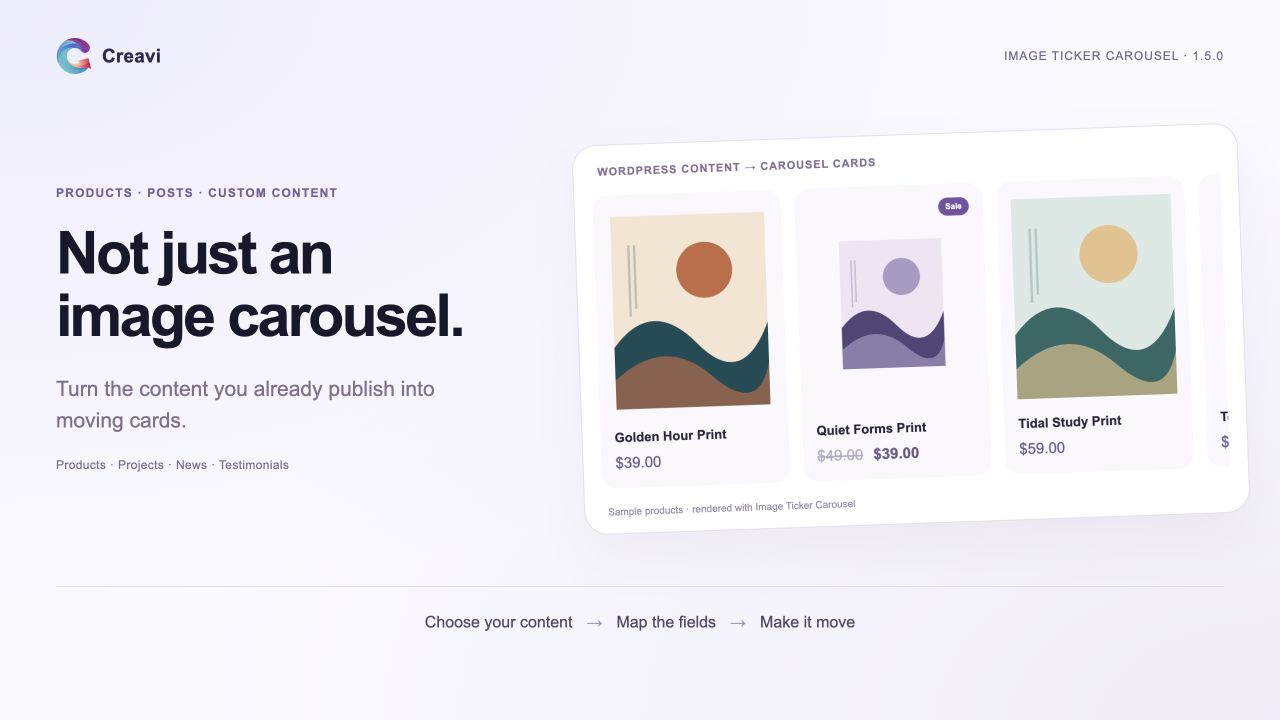
Image Ticker Carousel 1.5.0 lets you create Elementor tickers, carousels and sliders from registered WordPress post types. Connect products, posts, portfolio projects or testimonials, map their fields, and display matching published entries as moving cards. You can still add images and text manually whenever that suits the page.
An image carousel can show a picture. A connected content carousel can show the picture, its title, a price or excerpt, a badge, and a link to the original entry. The content you already maintain in WordPress supplies the cards.
Explore Image Ticker Carousel or get the free plugin on WordPress.org. The Site Content connection is available in version 1.5.0 and works with Elementor Free.
What can you scroll beyond images?
The content-type picker discovers Posts, Pages and custom post types registered by installed plugins. That opens up several useful collections:
- WooCommerce products: product image, name, formatted price and a link to the product page.
- Blog posts and news: featured image, headline, a short excerpt and a link to the full article.
- Portfolio projects: project artwork, title, category or a custom summary, linked to the case study.
- Team profiles: a portrait, name, role and profile link when those details are stored in post fields or metadata.
- Testimonials and review posts: a client name, quote or rating from the fields used by the plugin that stores them.
The connection follows how the site stores its content. Reviews saved as a post type can be mapped; native WooCommerce product reviews are comments and are not imported by this feature.
Map your fields to the card
Start with the suggested mappings, then change only what your content needs. You do not have to rebuild a product name or copy an excerpt into a second list.
| Card field | Suggested source | Other useful choices |
|---|---|---|
| Image | Featured image | A custom image field, attachment ID or image URL |
| Title | Entry title | Client name, team member name or custom text |
| Caption | Excerpt, or formatted price for products | A quote, role, rating, taxonomy names or another custom field |
| Badge | None | Sale status, category, availability or a custom label |
| Link | Entry link, where a public page exists | A custom URL, a link field or no link |
Searchable field choices include registered metadata, sampled stored field names and available Advanced Custom Fields definitions, including group subfields. If a field is outside the choices, enter its stored name directly. Mappings are remembered separately for each post type.
Create a WooCommerce product carousel with prices
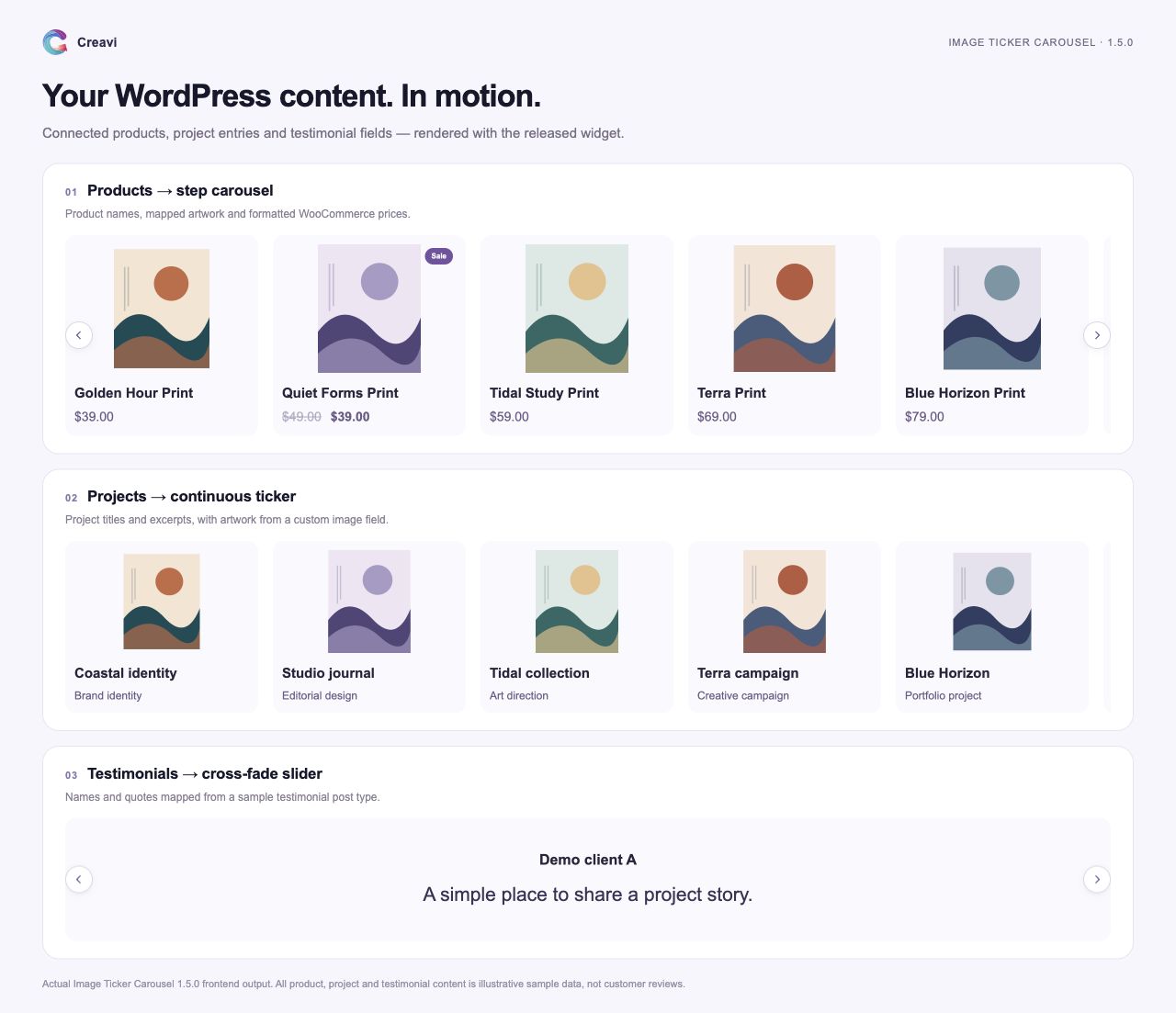
Choose the Product content type and the suggested caption uses the product’s formatted price. Sale prices retain their formatting. You can also map the SKU, average rating, sale badge or availability.
This keeps the product page as the place where you maintain the product information. The carousel reads those values when it renders, rather than requiring a separate price typed into every card. Product cards respect catalog visibility and the store’s setting for hiding out-of-stock products.
Cards can link to their product pages, so visitors can open the full details and continue shopping through your store.
Choose the collection and how it moves
Under Choose Entries, set the count, order and relevant taxonomy filters, such as product categories or post tags. Include specific entry IDs for a curated selection, exclude entries you do not want, or skip the first results. You control the size of the collection.
Then choose a movement style. A continuous ticker suits short highlights. A step carousel gives visitors time to browse products or read captions. A cross-fade slider shows one entry at a time. The optional 3D oval curve is available for supported multi-item tickers and carousels.
The existing controls for image proportions, spacing, typography, backgrounds, badges and navigation still apply. Responsive image loading and native lazy loading remain available for eligible Media Library images. Read the earlier overview of movement styles and image loading for more detail.
How to connect a post type in Elementor
- Install or update Image Ticker Carousel to version 1.5.0 or later, with Elementor active.
- Add or open the Creavi Image Ticker Scroll widget.
- Go to Content > Content Source and choose Site Content — Posts & Custom Types.
- Select a content type and use Choose Entries to set the collection.
- Review Map Card Fields. Keep the suggestions or choose your image, title, caption, badge and link sources.
- Choose the movement, style the cards, and preview the result on desktop and mobile before publishing.
New and edited entries appear according to the query when the widget renders. Page, Elementor or CDN caches can delay visible changes, so clear the relevant cache when needed.
Questions about connected content
Does it work with any custom post type?
It discovers registered custom post types regardless of which plugin creates them. Card values must be available as compatible post fields or metadata. Data stored only in separate plugin tables, comments, ACF repeater rows or gallery rows is not expanded into cards.
Can I display a non-public testimonial type?
Yes, with the display switch for that particular type enabled. Only published entries without a password are shown. Drafts and private entries stay excluded. Protected custom fields also need an explicit switch for each mapping. Types without publicly viewable pages have no automatic entry link.
Do I need Elementor Pro, WooCommerce or ACF?
Elementor Pro is not required. WooCommerce is needed for its product data, and ACF helps when your site uses ACF fields. Neither is required for the general post-type connection.
Will updating change my existing image carousels?
No. Manual Items remains the default, and saved lists, links, styles and movement choices are retained. Select Site Content for the widgets you want to connect. Switching back to Manual Items restores that widget’s saved list.
Give your existing content another place to be seen
A shop can highlight a product collection, a studio can surface recent projects, and a publisher can introduce new articles. Choose the content you already have, map the details that matter, and decide whether visitors should scroll, browse or focus on one card.
See Image Ticker Carousel · Download the free WordPress plugin