

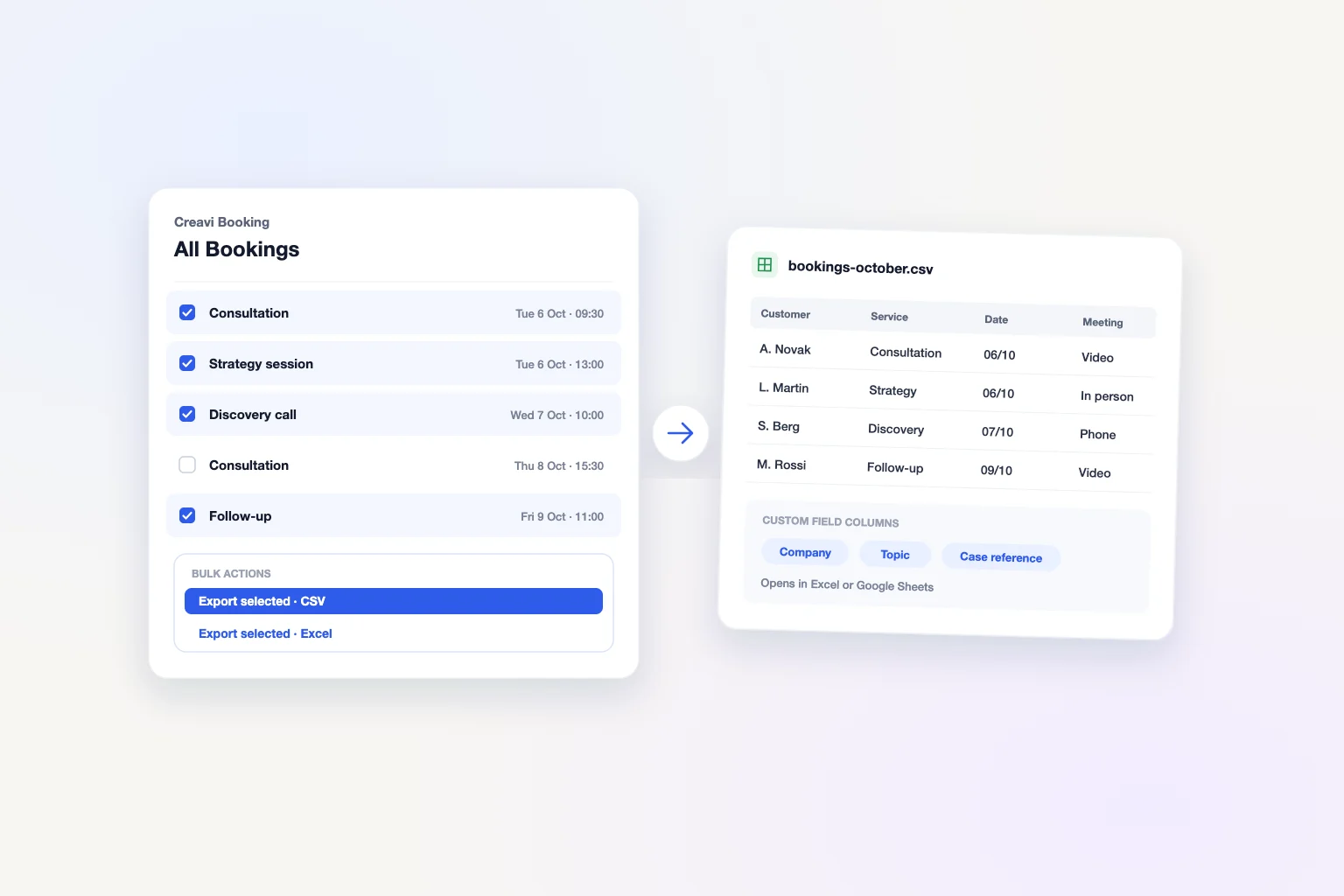
To export WordPress bookings with the free Creavi Appointment Booking Calendar plugin, go to Creavi Booking → All Bookings, select the appointments you need, then choose Export selected — CSV or Export selected — Excel from Bulk actions and click Apply. Open the .xls file in Excel, or import the .csv file into Google Sheets.
Updated 10 November 2026. Export details checked against Creavi 1.8.0 on WordPress.org. Creavi develops the plugin covered in this guide.
How to export WordPress bookings to Excel or CSV
- Sign in as a WordPress administrator and open Creavi Booking → All Bookings.
- Tick the bookings you want to export. The checkbox in the table header selects bookings on the current page.
- Open Bulk actions and choose Export selected — CSV or Export selected — Excel.
- Click Apply to download the file.
For a longer list, use Screen Options to display more bookings per page, or export one page at a time. New to Creavi? Follow the guide to setting up appointment booking in WordPress first.
Which booking export format should you choose?
| Where you need the bookings | Choose in Creavi | What to do next |
|---|---|---|
| Microsoft Excel | Export selected — Excel | Open the downloaded .xls file in Excel. |
| Google Sheets | Export selected — CSV | Upload the .csv file through File → Import. |
| CRM or another reporting tool | Export selected — CSV | Import the CSV and match its columns to the fields your tool expects. |
How to import WordPress bookings into Google Sheets
- Download the bookings using Export selected — CSV.
- In Google Sheets, open a spreadsheet and choose File → Import → Upload. Select your CSV file.
- Choose Insert new sheet to keep the existing tabs, then click Import data.
If the data lands in a single column, reimport the file and set Separator type to Comma. See Google’s file import instructions for the available options.
How to open a booking CSV in Excel
You can also use a CSV in Excel. If the columns or dates look wrong when you open it, import it through Data → From Text/CSV and choose a comma as the delimiter. Set any columns with phone numbers or reference codes to text if you need to preserve leading zeros. See Microsoft’s CSV import guide.
What columns does a Creavi booking export include?
Both exports contain one row per selected booking. The standard columns include Booking ID, Service, Appointment Date, Start Time, End Time, Timezone and Status, plus customer and meeting details.
Saved custom booking field answers also appear in the export. For example, a saved answer to “Company name” appears under Custom — Company name. If a selected booking has no answer for that column, its cell is blank.
Use the export for monthly booking reports
To count appointments by service, filter the spreadsheet by Appointment Date and build a pivot table with Service as rows and a count of Booking ID as values. Filter by Status if your report should cover only certain bookings. Check the Timezone column before grouping appointments from different service time zones.
For sales follow-up, you can import selected demo bookings into a CRM. Before sharing a report, remove names, contact details, meeting links and custom answers that recipients do not need. Limit access to the people who need the file.
Can you automate booking reports?
A CSV or Excel export is a snapshot of the selected bookings. To refresh a spreadsheet manually, export and import the data again. For scheduled reporting, an approved integration can read bookings through the Creavi Booking REST API and write them to your reporting tool. The API supports date and service filters, and access to all bookings must be granted separately.
Frequently asked questions
Can I export WordPress bookings for free with Creavi?
Yes. The free Creavi plugin includes CSV and Excel exports for selected bookings.
How do I export all bookings if they span multiple pages?
The table header checkbox selects only the current page. Increase the number of bookings shown in Screen Options if they can fit on one page. Otherwise, export each page in the same format. When you combine the files, match columns by their headers because custom field columns can differ between batches.
Why are the export options missing from Bulk actions?
Open Creavi Booking → All Bookings with a WordPress administrator account. The export actions require the manage_options permission. If they are still missing, check that the installed Creavi version includes booking exports.
Does Creavi sync bookings directly to Google Sheets?
The built-in Google Sheets workflow is a manual CSV import. For automatic updates, connect an integration to the Creavi Booking REST API and have it write to your sheet.
Does automatic booking cleanup delete exported files?
No. Creavi’s optional cleanup removes eligible booking records from WordPress. It leaves previously downloaded files and existing events in Google Calendar or Outlook Calendar in place.
Start reporting on your bookings
Download Creavi free from WordPress.org or try the live booking demo. If you need a different export or help setting up reporting, contact the Creavi team.