


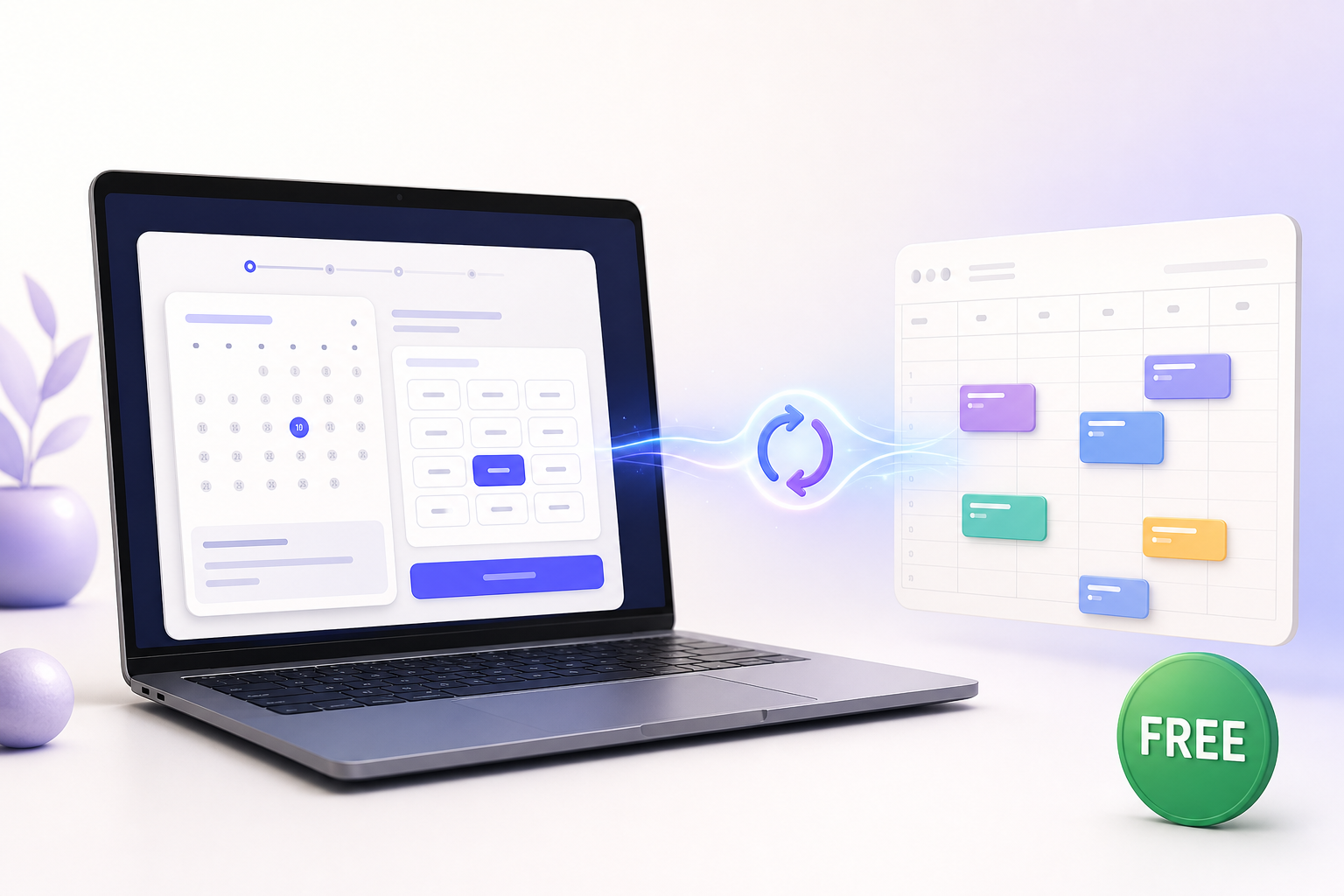
A free WordPress booking plugin with Google Calendar can turn your website into a practical appointment system without adding another monthly scheduling bill. Customers choose an available time on your website, the booking appears in your Google Calendar, and existing busy events can stop conflicting time slots from being offered.
Creavi includes this Google Calendar connection for free. You can automatically create calendar events, read busy periods, add preparation buffers, invite the customer, and connect a different Google account to each service. This guide explains exactly what the connection does, how to configure it and how it supports a fast, reliable appointment-booking workflow.
New to Creavi? Start with our step-by-step guide on how to add appointment booking to WordPress, then come back here to connect your calendar.
Quick answer: can WordPress bookings connect to Google Calendar for free?
Yes. Creavi Appointment Booking Calendar can send new WordPress bookings to Google Calendar and check the connected calendar for busy periods at no charge. That makes Creavi a free WordPress booking plugin with Google Calendar event creation and availability checking. When busy-time blocking is enabled, a time slot that overlaps an existing Google event is removed from the public booking calendar. The event templates and attendee invitations described in this guide are included too.
The practical result: customers book on your WordPress website, while you continue managing your daily schedule in Google Calendar.
What does the free Google Calendar connection include?
| Google Calendar feature | Included free | Business benefit |
|---|---|---|
| Automatic event creation | New website bookings can create events in the connected Google Calendar | No manual copying from WordPress to your calendar |
| Live busy-time blocking | Busy Google events can disable overlapping booking slots | Reduces scheduling conflicts and double bookings |
| Per-service connections | Each service can connect to its own Google account | Useful for staff-specific services or separate business calendars |
| Custom event details | Control the event title, description, location, and booking information | Gives you useful context before every appointment |
| Customer invitations | Add the customer email as a Google Calendar attendee | Places the appointment in the customer’s calendar too |
| Appointment buffers | Add 5–60 minutes after appointments and busy calendar events | Protects preparation, travel, or recovery time |
| Timezone handling | Use the visitor’s timezone or lock bookings to the business timezone | Reduces confusion for remote appointments |
These features are part of the same free Creavi plugin on WordPress.org. You do not need a premium calendar extension to enable them.
Why use a free WordPress booking plugin with Google Calendar?
Reduce double bookings
A booking form only knows when you are available if it can see the schedule you already use. Without calendar availability checking, a customer may select 14:00 on your website even though a client meeting already occupies that time in Google Calendar.
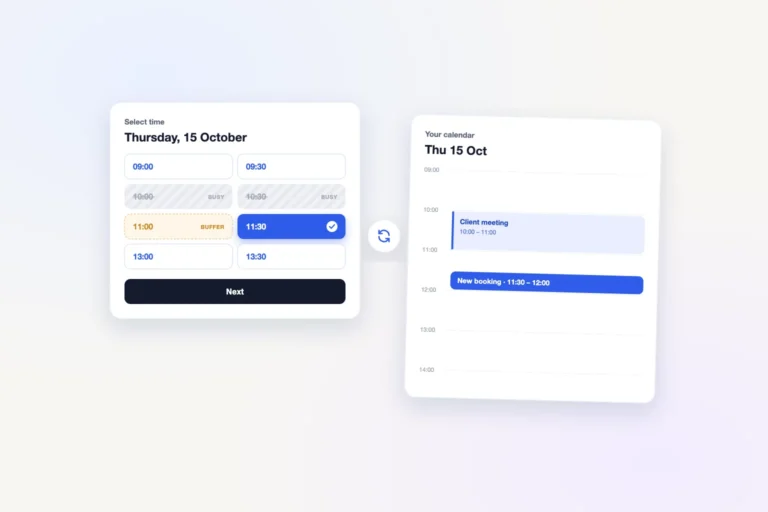
Creavi checks both local WordPress bookings and busy periods from the connected Google Calendar. Overlapping slots are removed before the customer completes the booking.
Stop copying appointments manually
Every manual calendar entry creates another opportunity for a wrong time, missing customer name, or forgotten appointment. Automatic event creation keeps the website booking and your working calendar in the same daily workflow.
Keep useful booking details in the event
A calendar event can include the service, customer name, email address, date, time, location, meeting link, and answers from custom booking fields. You can prepare for the appointment without opening several systems.
How the WordPress and Google Calendar workflow works
- You define availability in WordPress. Choose working days, time slots, appointment duration, excluded dates, minimum notice, timezone behavior, and an optional buffer.
- Creavi checks for conflicts. The plugin compares the requested slot with existing WordPress bookings and, when enabled, busy periods in the connected Google Calendar.
- The customer books an open time. They complete the Date → Time → Details flow directly on your website.
- WordPress saves the booking. Customer and administrator confirmation emails can be sent automatically.
- Google Calendar receives the event. Creavi creates the event with your chosen title, description, duration, attendee, and meeting location.
- Future visitors see updated availability. The new WordPress booking is blocked locally, while busy Google events continue to protect the public schedule.
How to set up the free Google Calendar connection
1. Install Creavi Appointment Booking Calendar
In WordPress, go to Plugins → Add New, search for Creavi Appointment Booking Calendar, then install and activate it. You can also download Creavi free from WordPress.org.
2. Create your bookable service
Add a service such as a consultation, coaching call, therapy appointment, lesson, demo, or on-site visit. Configure its duration, available days, time slots, meeting method, timezone, booking notice, and optional buffer.
3. Connect Google Calendar
Open the service editor and find the Google Calendar section. Select Connect Google Calendar, choose the appropriate Google account, and authorize the connection. When complete, the service displays a connected status.
4. Enable automatic event creation
Enable Add bookings to Google Calendar. Each successful booking for this service can now create an event in the connected primary calendar.
5. Enable busy-time blocking
Enable Block busy times (live). Creavi will check busy ranges in Google Calendar and disable website time slots that overlap them. This setting is essential if Google Calendar is where you record meetings that are created outside WordPress.
6. Customize the event
Open Event details and create an event title and description that are useful at a glance. Available placeholders include {name}, {email}, {service}, {date}, {time}, {location}, and {custom}.
For example, use {service} — {name} for a title such as “Strategy Call — Anna Jensen.” Enable the attendee option if you want the customer to receive a Google Calendar invitation.
7. Publish and test the complete journey
Add the booking calendar to a page using the inline shortcode, popup booking button, Service Hero block, or Booking Profile block. Make a test booking with a real email address and verify all four results:
- The booking appears in WordPress.
- The event appears in Google Calendar at the correct time.
- The customer and administrator receive the expected confirmation.
- A separate busy Google event removes the conflicting website time slot.
How busy-time blocking helps prevent double bookings
Creavi treats a Google event’s start and end as a busy interval. If a website appointment overlaps that interval, the slot is unavailable. The check also considers the service duration and your optional post-appointment buffer.
Suppose you offer a 60-minute consultation with a 15-minute buffer. A Google event from 10:30 to 11:00 may conflict with a website slot beginning at 10:00 because the consultation plus its buffer would run until 11:15. That is intentional: the buffer protects the full amount of time you configured.
Calendar synchronization greatly reduces conflicts, but it is still good practice to test unusual cases such as all-day events, travel blocks, timezone changes, and daylight-saving transitions before opening a new service to customers.
Can different services use different Google Calendars?
Yes. Creavi supports service-level Google connections. A consultation service can connect to one Google account, while a therapy session, sales demo, or second staff member’s service connects to another. A service-specific connection takes priority, while an existing site-level connection can act as a fallback.
This works well for teams because every provider or appointment type can have a dedicated service and calendar. Customers can choose the exact provider or service they want to book.
How Creavi keeps Google Calendar availability aligned
Calendar plugins use the word sync for different behaviors. Creavi’s current free Google Calendar integration provides the two functions most small appointment businesses need:
- WordPress → Google Calendar: a new website booking can create a Google event automatically.
- Google Calendar → availability: busy Google events can block overlapping slots on the WordPress booking calendar.
Creavi keeps the workflow clear: WordPress manages the customer booking and notifications, while Google Calendar receives appointment events and contributes busy-time availability. This gives you one practical scheduling flow without manually copying every appointment.
More than a free Google Calendar connector
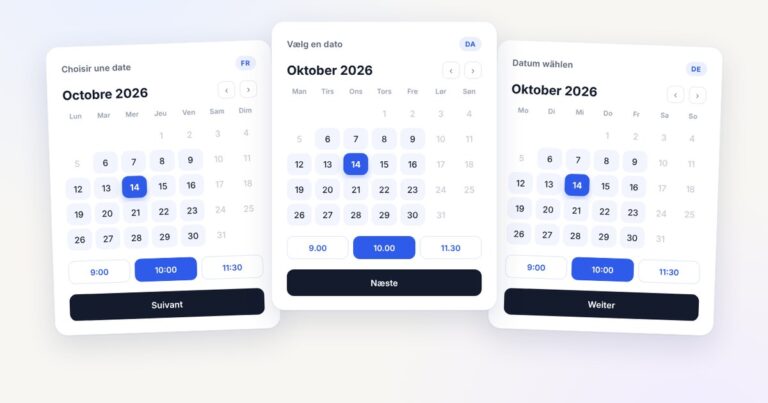
Calendar availability is only one part of a reliable customer journey. Creavi also includes customer and administrator confirmations, configurable reminder emails, custom form fields, timezone controls, appointment buffers, a responsive Date → Time → Details interface, and built-in secure video conferencing for online appointments—all free.
If your business uses Microsoft instead, follow the free Outlook Calendar integration guide. For a complete overview of both calendar connections, built-in video conferencing for online appointments, reminders, and the modern booking interface, see our free WordPress booking plugin guide.
A free Google Calendar scheduling alternative on your own website
For service businesses that mainly need one-to-one appointments, Creavi can provide a simple alternative to sending customers to a separate scheduling profile. The booking experience stays on your WordPress site, uses your own page design and can be embedded as a clean inline calendar or a compact popup button.
The Google Calendar connection is included free, along with Outlook integration, iCalendar files, reminders and built-in secure video conferencing for online appointments. There is no separate premium calendar add-on required for the workflow described in this guide. This makes Creavi a flexible, all-purpose appointment-booking solution for businesses and professionals across industries, with no additional monthly scheduling fee.
You can customize the brand color, add service-specific form questions and place the booking interface in Gutenberg, Elementor or another shortcode-compatible page builder. The aim is to keep installation and everyday use straightforward while still protecting real calendar availability.
Who is this free booking calendar best for?
- Consultants and agencies booking discovery or strategy calls
- Coaches, therapists, tutors, mentors, and legal professionals
- Recruiters and sales teams scheduling interviews or demos
- Clinics, salons, wellness providers, and local service businesses
- Freelancers who manage their workday in Google Calendar
- Small teams using a separate service and Google Calendar for each provider
Frequently asked questions
Is this a free WordPress booking plugin with Google Calendar?
Yes. Automatic Google event creation, live busy-time checking, per-service connections, event templates, customer invitations, and the related booking features described here are included in the current free Creavi plugin.
Can Google Calendar events prevent double bookings?
Yes. When live busy-time blocking is enabled, Creavi removes website slots that overlap busy periods in the connected Google Calendar. Local WordPress bookings, service duration, exclusions, minimum notice, and buffers also affect availability.
Can I connect a different Google account to each service?
Yes. Each service can use its own Google connection. This is useful for staff-specific services, separate departments, or businesses that keep different appointment types in different accounts.
Can customers receive a Google Calendar invitation?
Yes. Enable the attendee option and the customer’s booking email can be added to the event. Confirmation emails can also include an Add to Google Calendar action.
Does Creavi support online appointments with video conferencing?
Yes. Creavi includes built-in secure video conferencing for online appointments. You can also use a custom online meeting link, and the meeting details can be included in confirmations, reminders and calendar events.
How does Creavi connect WordPress and Google Calendar?
Creavi creates Google Calendar events for WordPress bookings and reads busy periods to protect availability. WordPress remains the central place for managing customer booking details and notifications.
Does the booking calendar work with Elementor and Gutenberg?
Yes. Use Creavi’s shortcodes in Elementor or another page builder, or use the included Service Hero and Booking Profile blocks in Gutenberg.
Start accepting Google Calendar bookings for free
If you want a free WordPress booking plugin with Google Calendar, Creavi provides the essential workflow without a paid calendar extension: customers book on your website, busy calendar periods protect your availability, and new appointments appear automatically in the calendar you already use.
Install the plugin, create one service, connect Google Calendar and publish your booking page in just a few minutes. Then make a test booking. You can evaluate the complete workflow on your own WordPress website before paying for additional scheduling software.
11 Comments
[…] more detail, read our guides to WordPress booking with Google Calendar sync and Outlook Calendar […]
[…] a detailed calendar walkthrough, see the guides to WordPress booking with Google Calendar sync and Outlook Calendar […]
[…] Google Calendar booking guide explains this […]
[…] the Google Calendar booking guide or the Outlook Calendar integration guide for the complete […]
[…] step-by-step help, follow the dedicated setup guides for Google Calendar booking integration and Outlook and Microsoft 365 appointment […]
[…] confirmation and reminder emails are included free with editable templates. Booknetic’s email notifications ship as a free add-on […]
[…] reading: Google Calendar booking integration · Outlook Calendar integration · Booking forms with custom fields · Live booking […]
[…] the full walkthrough? Read our Google Calendar sync guide or the Outlook integration guide. Or install Creavi free and connect it […]
[…] blocks that time in the other. The team receives every notification in Danish. Learn more about the Google Calendar connection and the Outlook Calendar […]
[…] Read the detailed guide to free WordPress booking with Google Calendar sync. […]
[…] how to add appointment booking to WordPress. Calendar-specific setup is covered in our guides to Google Calendar sync and Outlook Calendar […]