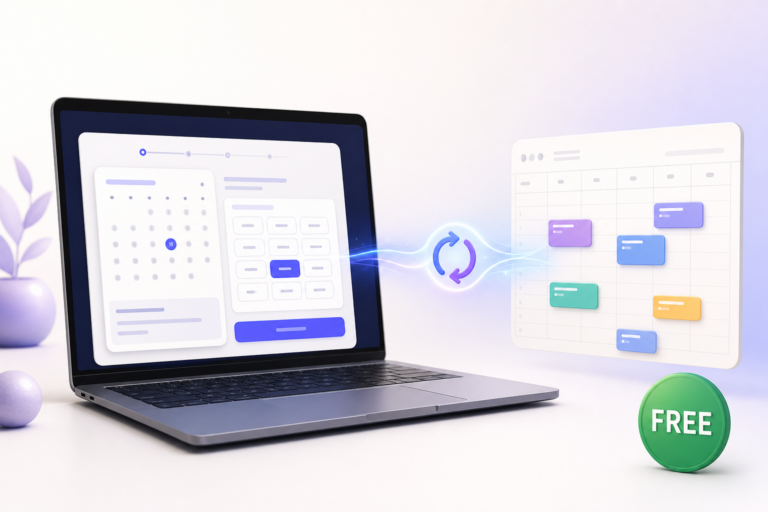

If you manage your working day in Microsoft Outlook, your website bookings should appear there automatically. Creavi gives you a free WordPress booking plugin with Outlook Calendar integration: new appointments become calendar events and existing busy periods can be removed from the time slots shown to customers. The Outlook connection is included free, with no premium plan or paid Outlook add-on required.
This guide explains what the Outlook Calendar integration does, how to connect it, and what “calendar sync” means in practice. Automatic event creation, busy-time checking, per-service Microsoft accounts, and custom Outlook event templates are included in Creavi’s current free feature set.
Is the Outlook Calendar integration free?
Yes. Creavi’s Outlook Calendar connection is free. You do not need a premium subscription, a paid calendar add-on, or a separate Creavi upgrade to connect Outlook. Install the free plugin from WordPress.org, connect the Microsoft account for a service, and enable the Outlook features you need.
Outlook, Office 365 and Microsoft 365 booking integration
People commonly search for an Office 365 booking plugin, a Microsoft 365 booking plugin or an Outlook Calendar booking plugin. In this guide, those phrases describe the same practical requirement: connect a Microsoft calendar to a booking form on WordPress.
| Free Outlook capability | What it provides |
|---|---|
| Automatic event creation | New WordPress appointments can appear in the connected Outlook calendar. |
| Busy-time checking | Existing busy events can remove conflicting slots from the public booking page. |
| Per-service connection | Different services can use different Microsoft accounts or staff calendars. |
| Event templates | Customize the Outlook event title and description with booking details. |
| Customer attendee | Include the booking email as an event attendee when appropriate. |
| Buffers and timezones | Protect preparation time and present appointments in the intended timezone. |
Microsoft account permissions and organizational policies can affect which calendars an account may access. If the connection is managed by an employer or school, confirm the required permissions with the Microsoft 365 administrator.
What the Outlook Calendar integration does
Creavi connects Outlook to each booking service you create in WordPress. Once the connection is enabled, it can handle two useful jobs:
- Create an Outlook event after a booking: a new customer appointment is added to the connected Microsoft calendar with its date, time, customer details, and service information.
- Check Outlook for busy times: existing busy events can block matching appointment slots on your public booking calendar, helping you avoid offering a time when you are unavailable.
The result is one practical schedule. You do not have to copy every confirmation into Outlook, and customers see availability that takes your connected calendar into account.
Outlook event creation and live busy-time availability
Creavi connects the WordPress booking journey with the Outlook schedule you already use. New appointments can become Outlook events, while existing busy periods help determine which times customers can book.
WordPress manages the customer booking, status and notifications, while Outlook provides daily calendar visibility and availability. This clear workflow keeps booking administration organized and avoids copying appointments manually.
The result is a practical scheduling system that combines reliable WordPress booking records with the familiar Outlook Calendar experience.
How a new WordPress booking reaches Outlook
- A customer chooses an available service, date, and time on your WordPress website.
- Creavi saves the appointment as a WordPress booking.
- If automatic Outlook event creation is enabled for that service, Creavi creates the calendar event in the connected Microsoft account.
- The appointment appears alongside your other Outlook meetings with the event title and description format you configured.
The customer’s email can be included as an event attendee. The event can also contain the service name, customer name, email, date, time, and location.
How to connect Outlook Calendar to WordPress
The Outlook connection is configured separately for each Creavi service. This makes the setup flexible for a solo professional as well as a team with different calendars.
- Open Creavi Booking in your WordPress dashboard and edit the service you want to connect.
- Find the Outlook Calendar section and select Connect Outlook.
- Sign in to the appropriate Microsoft account and approve the requested calendar access.
- Return to the service and confirm that the connection status shows Connected.
- Enable Automatically push new bookings to Outlook Calendar.
- Enable Block busy Outlook time slots on frontend if Outlook events should affect the availability customers see.
- Customize the event title and description if needed, then save the service.
The connection takes only a few minutes to configure. Make a test booking after setup and confirm both results: the new event appears in Outlook, and a separate busy Outlook event removes the corresponding public time slot.
Customize Outlook event titles and descriptions
A clear Outlook event should tell you what the appointment is without requiring you to open WordPress. Creavi supports reusable placeholders in both the event title and description:
{service}— the booked service{name}— the customer’s name{email}— the customer’s email address{date}and{time}— the appointment schedule{location}— the appointment location
For example, an event title such as {service} — {name} can become “Strategy Call — Anna Jensen.” A description can list the customer email, date, time, and location on separate lines. This gives you useful context before the meeting and keeps Outlook easy to scan.
Prevent double bookings with Outlook busy times
Automatic event creation solves only half of the scheduling problem. A WordPress booking page also needs to know when Outlook already contains a meeting, personal appointment, or another commitment.
When busy-time blocking is enabled, Creavi checks the connected Outlook Calendar as availability is calculated. A busy period that overlaps a possible appointment makes that time unavailable on the customer-facing calendar. Local WordPress bookings, working hours, excluded dates, minimum notice, and your service buffer are considered as well.
Calendar status matters: an Outlook event marked as busy should block the slot, while an event that does not reserve your time may remain available. Test the exact Outlook status your organization uses before publishing your booking page.
Use a separate Outlook Calendar for each staff member
Because the Outlook connection belongs to a service, you can create staff-specific services and connect each one to the appropriate Microsoft account or calendar. For example, a consultancy can create “Discovery Call — Maria” and “Discovery Call — Peter,” then connect each service to that consultant’s calendar.
This service-to-calendar model is flexible for teams of different sizes. Organize services around the provider, appointment type or customer journey so visitors can book exactly what they need.
A clean booking page that is easy to embed
The customer does not need to leave your website or understand your internal Microsoft setup. Creavi presents a simple, responsive booking flow on WordPress while the Outlook connection works behind the scenes.
Add the calendar directly to a page, open it from a popup button or place the shortcode in Elementor and other compatible page builders. Gutenberg users can also use ready-made booking blocks. Brand colors, custom form questions and light or dark layouts help the form fit the rest of the site.
The same free plugin also includes Google Calendar connection, iCalendar files, customizable reminders and built-in secure video conferencing for online appointments. This gives businesses and professionals across industries a flexible, all-purpose appointment system without a separate monthly scheduling subscription.
Who benefits from a WordPress Outlook booking integration?
The integration works for appointment-based businesses and professionals across industries, from independent specialists to multi-service teams using Microsoft 365. Bookings stay on your WordPress website while Outlook remains the familiar place to review the day.
For the broader feature overview, read our guide to the free WordPress booking plugin with Google Calendar, Outlook, and built-in video conferencing for online appointments. If you are still choosing a scheduling system, compare Creavi with the best WordPress appointment booking plugins. You can also review the latest appointment booking calendar plugin updates.
Outlook Calendar integration FAQ
Does Creavi work with Microsoft 365 Outlook Calendar?
Yes. You connect a Microsoft account from the Outlook Calendar section of an individual service. Always use the account that owns the calendar you want that service to check.
Will Outlook events prevent customers from booking that time?
Yes, when the option to block busy Outlook time slots is enabled. Creavi reads busy periods from the connected calendar and removes conflicting appointment times from the frontend.
How should I manage changes to an Outlook-connected appointment?
Manage customer appointment changes in WordPress so the booking record, status and notifications stay organized. Outlook continues to provide schedule visibility and busy-time availability.
Can different services connect to different Outlook accounts?
Yes. The connection is stored per service, which supports separate service or staff calendars.
Is the Outlook integration a paid add-on?
No separate Outlook add-on is required in Creavi’s current free feature set. You can install Creavi from WordPress.org and configure the connection from the service settings.
Connect your WordPress bookings to Outlook
Connect Outlook to the relevant service, enable event creation and busy-time blocking, then verify the setup with a test appointment. You will spend less time copying bookings between systems, while customers receive more reliable availability.
See the Creavi booking experience or install the plugin from WordPress.org to start connecting your services and calendars.