



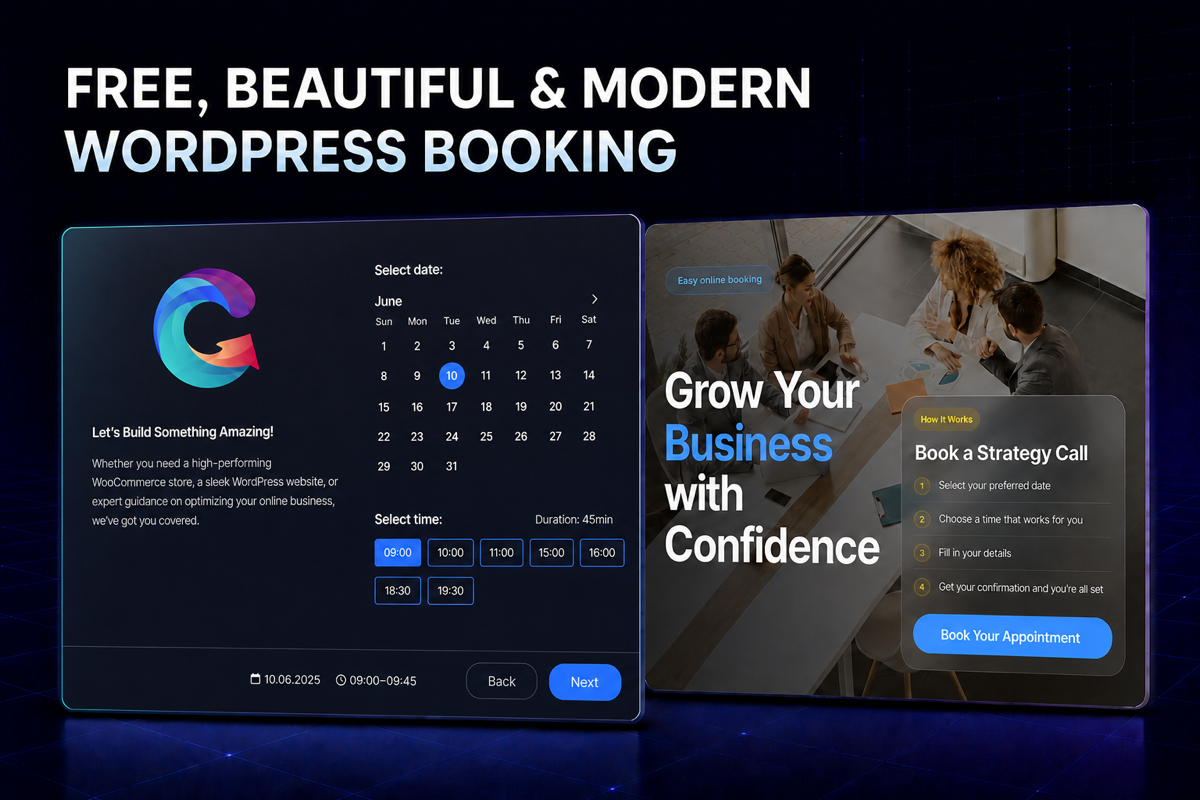
A modern booking calendar should feel like part of your website. This guide looks at the customer-facing design choices that make appointment booking clear on desktop and mobile: layout, brand colors, service images, and whether the calendar opens inline or in a popup.
We use Creavi Appointment Booking Calendar as the example. Creavi develops the plugin, so this is a product-specific walkthrough rather than an independent comparison. For a wider feature overview, start on the Creavi booking plugin page; the sections below focus on how its booking interface can fit different WordPress page designs.
The design examples below are illustrative. Choose the layout that matches your own service page, then test the booking flow on the devices your customers use.
A Modern WordPress Booking Calendar Should Look Like Part of Your Website
A booking calendar is often one of the most important customer-facing elements on a service website. It is where interest becomes an appointment, consultation, interview, lesson or meeting.
If the booking interface looks outdated or disconnected from the rest of the website, visitors may hesitate before completing the process. A modern booking experience should feel like a natural part of the organization’s digital identity.
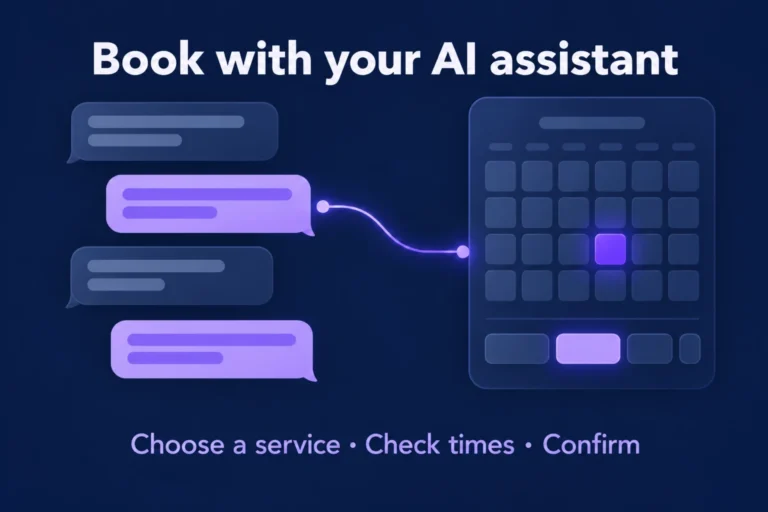
Creavi provides a clean, responsive interface that guides customers through a simple booking sequence:
- Choose a date.
- Select an available time.
- Enter the required details.
- Confirm the appointment.
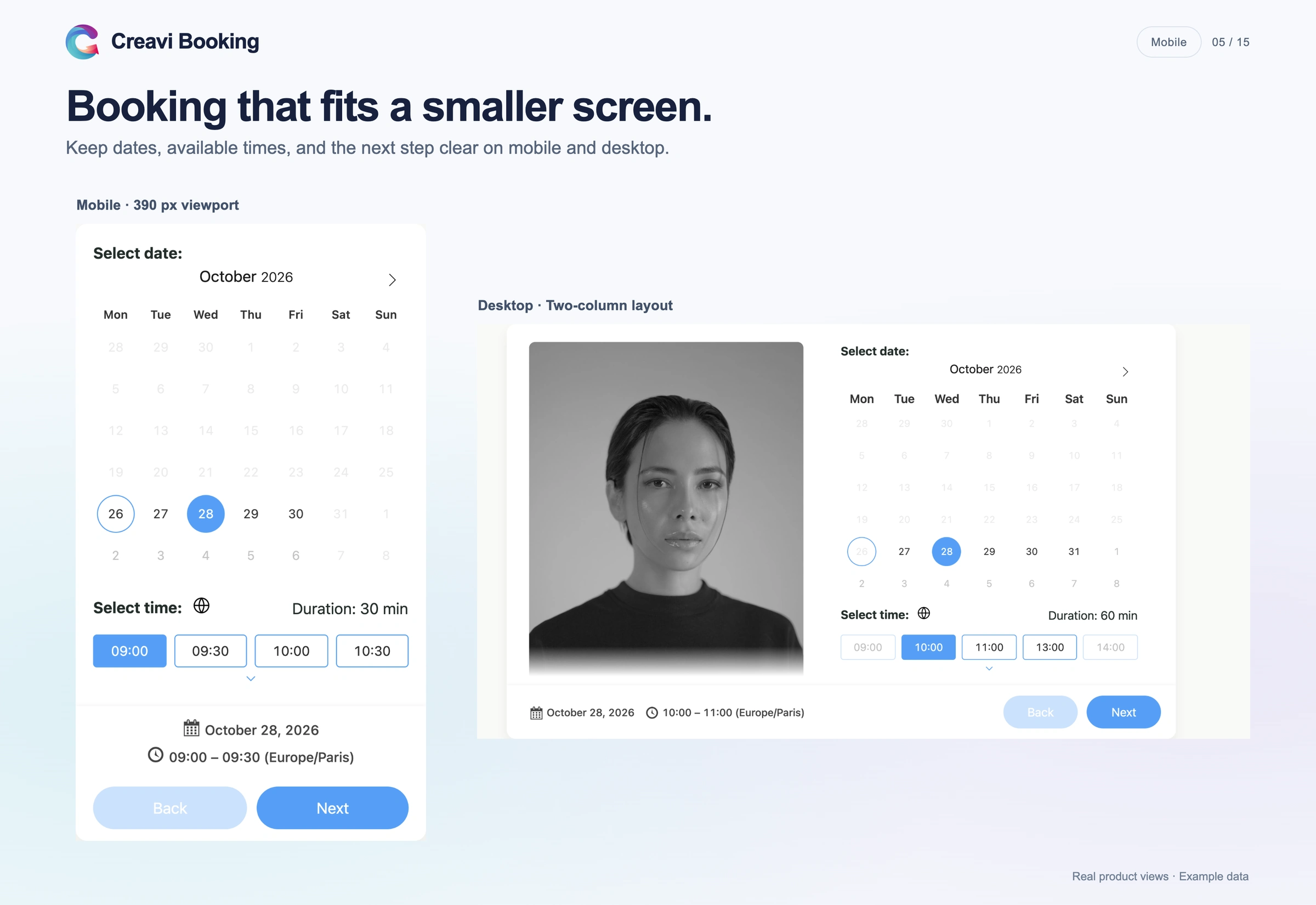
The calendar works across desktop, tablet and mobile screens. Service images, brand colors, button styling and thank-you messages can be adapted to fit the surrounding website.
Creavi also includes a black theme and flexible presentation options, making it possible to create booking experiences for different brands, services and page designs.
A Beautiful Frontend Booking Experience
The customer-facing booking calendar is one of Creavi’s main strengths. It is designed to look polished, modern and easy to understand from the moment a visitor opens it.
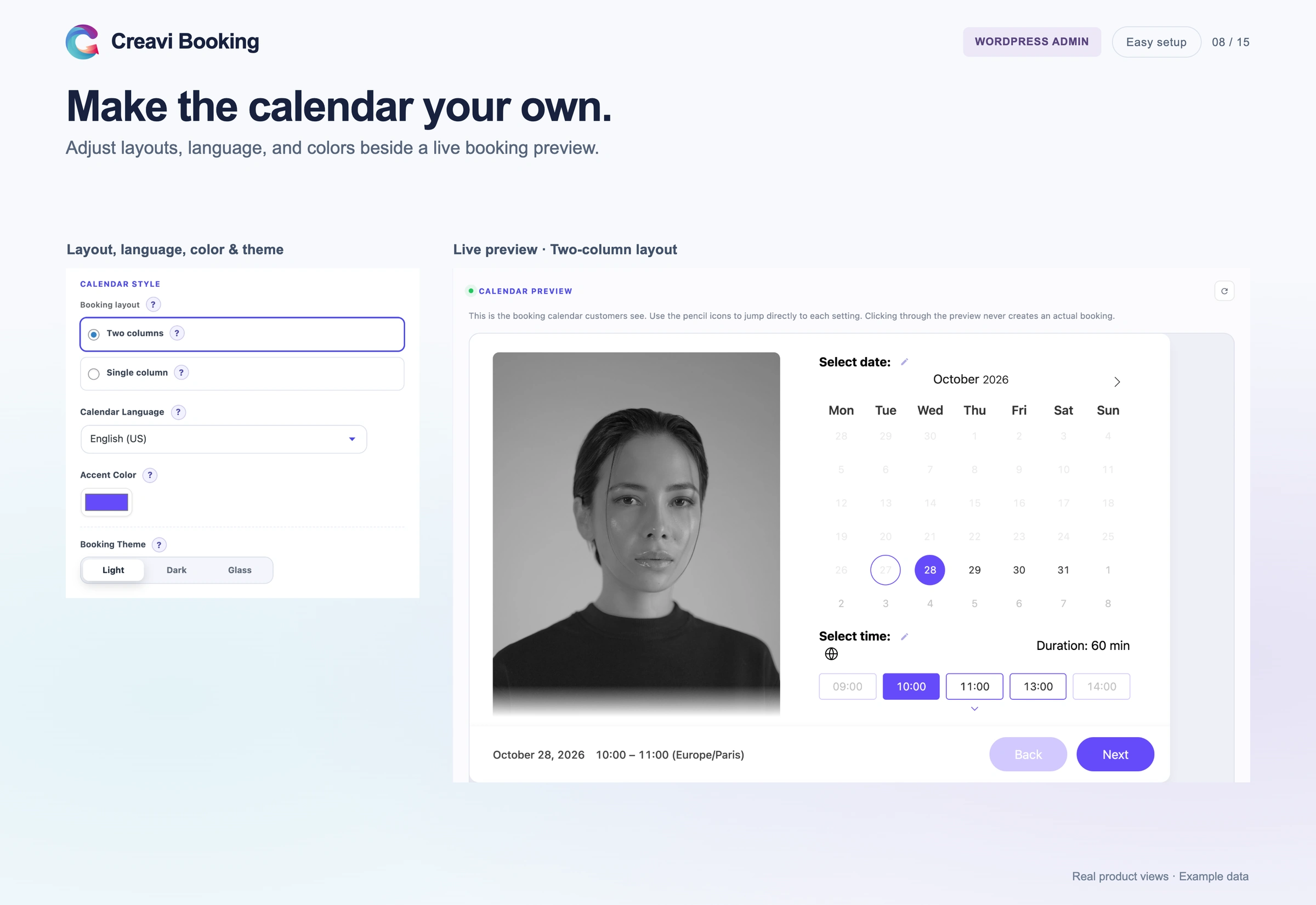
Clear spacing, readable typography, branded colors and intuitive controls help customers complete their bookings without confusion. The responsive interface works smoothly across desktop, tablet and mobile devices.
The calendar can be displayed directly on the page or opened through a stylish popup button. Service images, brand colors, button styling, the black theme and personalized confirmation messages help the booking experience feel like a natural part of the website.
The same booking system can support very different visual identities. A professional consultation, a wellness appointment, an interview or an online lesson can each use its own service content and presentation while retaining a consistent booking process.
Popup or Inline Booking: Use the Format That Fits the Page
Different pages require different booking experiences.
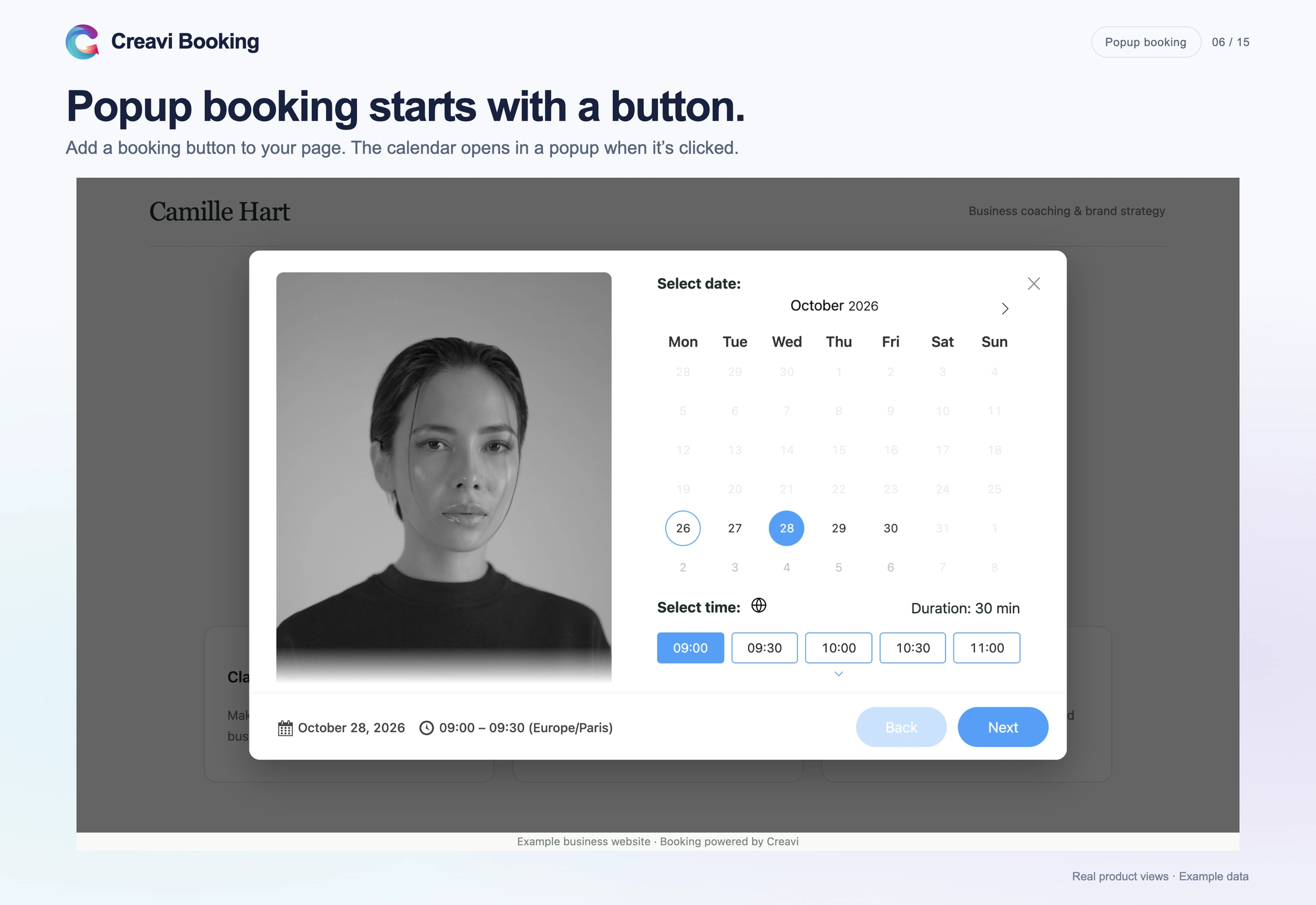
An inline calendar is useful when booking is the main purpose of the page. Customers can immediately see the calendar, available dates and appointment times without opening another interface.
A popup booking calendar is useful when the page needs to explain the service before presenting the booking process. A call-to-action button can open the calendar without sending the visitor to a separate website or external scheduling platform.
Creavi supports both approaches. You can:
- Embed the complete booking calendar directly on a page.
- Add a styled button that opens the calendar in a popup.
- Display multiple services on the same page.
- Use different buttons, calendars and presentation styles for different services.
- Add booking functionality with shortcodes, Gutenberg blocks, Elementor or another page builder.
If your website uses Elementor, see the guide to adding popup and inline appointment booking with Elementor.
Flexible Scheduling for Professional Appointment Workflows
A beautiful frontend must be supported by reliable scheduling controls. Creavi allows each service to have its own availability, duration, form, calendar connection, meeting format, notifications and branding.
Administrators can configure:
- Specific available dates.
- Rolling availability windows.
- Different appointment times for each weekday.
- Appointment durations of 10, 15, 20, 30 or 60 minutes.
- Excluded dates for holidays, closures or unavailable periods.
- Minimum notice before an appointment can begin.
- Buffers of 5 to 60 minutes between appointments.
- Localized or fixed-timezone booking.
- Service-specific calendar connections.
- Individual confirmation and reminder templates.
The availability preview updates as scheduling settings change, helping administrators understand how the customer-facing calendar will work before publishing it.
This combination of presentation quality and scheduling control makes Creavi suitable for more than a single appointment page. Organizations can create different booking flows for consultations, interviews, training, customer support, demonstrations, assessments and other scheduled services.
Free Google Calendar Connection
Creavi can connect a service to Google Calendar without requiring an additional Creavi calendar-sync subscription.
When a customer completes a booking, Creavi can automatically create the corresponding Google Calendar event. The plugin can also check the connected calendar for busy periods and remove conflicting times from the customer-facing booking calendar.
This helps prevent a time from appearing available when another event already occupies it. Administrators can also customize Google Calendar event titles and descriptions.
Read the detailed guide to free WordPress booking with Google Calendar sync.
Outlook Calendar Integration Is Included
Organizations that use Microsoft services can connect Creavi to Outlook Calendar.
Each service can use its own Outlook connection. New appointments can be added to the connected calendar, while busy Outlook events can be considered when calculating available booking times.
This allows organizations to maintain their established calendar environment while accepting appointments through WordPress.
Learn more about the WordPress booking plugin with Outlook Calendar integration.
Built-In Online Video Meetings
Online appointments should not require administrators to manually create and send a new meeting link for every booking.
Creavi includes built-in video conferencing that can automatically generate private meeting links for online appointments. The appropriate links can be included in:
- Customer confirmations.
- Administrator notifications.
- Reminder emails.
- Google Calendar events.
- Outlook Calendar events.
- Downloadable calendar files.
Customers and hosts receive their appropriate meeting links. Services can also be configured for in-person meetings, phone calls or custom online meeting links.
See how online appointment booking with built-in video conferencing works in practice.
Automated Confirmation and Reminder Emails
A completed booking should trigger clear communication for both the customer and the organization.
Creavi sends booking notifications to customers and administrators. Email templates can be customized using customer details, service information, appointment dates, appointment times and meeting information.
The visual email editor supports formatted HTML layouts, images and a plain-text fallback. Reminder emails can also be scheduled before an appointment. Customer and administrator reminders can be enabled independently and use different timing and templates.
For online appointments, reminder templates can include the relevant video-meeting link automatically. This reduces repetitive communication and helps ensure that everyone has the correct details before the meeting begins.
Custom Booking Forms for Different Services
Not every appointment requires the same information.
A short introductory call may only need a name and email address. A consultation, interview or assessment may require a phone number, reference number, objectives or additional background information.
Creavi allows administrators to customize the default Name, Email and Phone fields. Each field can be displayed or hidden and configured as required or optional.
Additional Text, Textarea, Telephone and Number fields can be added. The consent text and privacy-policy link can also be customized, allowing each service to collect the information relevant to its workflow.
Timezone-Aware Appointment Booking
Timezone differences can easily create confusion in online services, remote consultations and international appointment workflows.
With localized timezone handling, appointment times are automatically presented in the visitor’s local timezone. With locked timezone handling, all appointment times remain in the organization’s chosen business timezone.
Creavi also supports 67 explicit calendar languages and regional formats, along with the website’s default language. Month names, weekdays, selected-date summaries and confirmation dates can follow the selected service language.
Multiple Services Without Plugin-Imposed Limits
Creavi does not impose a fixed limit on the number of services or completed bookings.
Every service can have its own:
- Description and service image.
- Appointment duration.
- Available dates and times.
- Booking form.
- Google or Outlook Calendar connection.
- Meeting type.
- Confirmation emails.
- Reminder schedule.
- Calendar language.
- Brand color.
- Popup or inline presentation.
Multiple booking buttons and calendars can be displayed on the same page. This allows an organization to present several appointment types together while preserving individual scheduling rules.
The practical capacity depends on the WordPress installation and hosting resources rather than an artificial service or booking restriction added by the plugin.
Manage Booking Information Inside WordPress
Creavi provides booking management directly from the WordPress dashboard. Administrators can view, filter, edit and organize appointment records without moving between several disconnected systems.
Selected bookings can be exported to CSV or Excel. Exported information can include customer data, service information, appointment times, meeting details and custom booking-form fields. CSV exports are prepared for use with Google Sheets.
Completed booking records can be retained, moved to Trash or permanently deleted according to a configured retention period.
Designed for Professional Appointment Workflows
Creavi can support many service models and organizational workflows, including:
- Business and marketing consultations.
- HR interviews and recruitment meetings.
- Coaching and mentoring sessions.
- Online lessons and training.
- Client onboarding meetings.
- Product demonstrations.
- Customer-support appointments.
- Financial and professional consultations.
- Wellness and therapy appointment pages.
- Medical appointment requests.
- Internal and external advisory sessions.
- Virtual consultations with video meetings.
Each service can have an independent booking setup, allowing different departments, programs or appointment types to present the information and scheduling options relevant to their users.
How to Add Creavi to WordPress
1. Install the plugin
Open the WordPress dashboard and navigate to Plugins, Add New. Search for Creavi Appointment Booking Calendar, install the plugin and activate it.
You can also download it directly from the official WordPress.org plugin page.
2. Create a service
Add a new service and provide its title, description and optional service image.
3. Configure availability
Choose the available dates, weekday times, appointment duration, minimum notice and optional booking buffer.
4. Select the meeting format
Choose an in-person appointment, phone call, custom meeting link or built-in Creavi video meeting.
5. Connect a calendar
Connect Google Calendar or Outlook Calendar when the service should create events and account for busy calendar periods.
6. Customize the form and emails
Select the customer information the service requires and customize the confirmation and reminder templates.
7. Add the calendar to a page
Use a shortcode, Gutenberg block, Elementor or another page builder to add an inline calendar or popup booking button.
You can explore the Creavi documentation or try the live booking demonstration.
Free Does Not Have to Look Unfinished
Free WordPress plugins are sometimes associated with restricted functionality, dated interfaces or important capabilities being separated into paid extensions.
Creavi takes a different approach. The free plugin includes modern booking design, Google Calendar connection, Outlook Calendar connection, automated reminders, customizable forms, timezone handling, booking exports, service personalization and built-in video meetings.
It is designed to be easy to launch without limiting the system to basic use cases. Organizations can begin with one booking flow and add more services as their scheduling requirements develop.
Frequently Asked Questions
Is Creavi Appointment Booking Calendar really free?
Yes. The plugin can be downloaded for free from WordPress.org. Google and Outlook Calendar connections, reminder emails, custom booking forms, exports and built-in video meetings are included.
Does Creavi limit the number of services or bookings?
No. Creavi does not impose service or booking limits. The practical capacity depends on the website and hosting environment.
Can I use Creavi with Elementor?
Yes. Creavi works with Elementor through shortcodes. You can add an inline booking calendar or a button that opens the booking process in a popup.
Does Creavi work with Gutenberg?
Yes. Creavi includes Gutenberg blocks and ready-made booking layouts. Shortcodes can also be used in the WordPress block editor.
Can I connect Google Calendar and Outlook Calendar?
Yes. Creavi supports free Google Calendar and Outlook Calendar connections. It can create events and account for busy periods in the connected calendar.
Can Creavi generate online video-meeting links?
Yes. Built-in video meetings can automatically generate secure links for online appointments. The appropriate links can be included in emails, reminders and calendar events.
Can different services use different settings?
Yes. Every service can have its own availability, duration, form, calendar connection, meeting type, notifications, language and visual presentation.
Can international customers see appointment times in their own timezone?
Yes. Creavi can automatically display times in the visitor’s local timezone. Alternatively, the service can keep all appointment times locked to a specific business timezone.
Start Accepting Appointments with Creavi
A professional appointment booking system should be functional, flexible and easy for customers to use. It should also look like a considered part of the website rather than an external tool added as an afterthought.
Creavi combines a beautiful modern booking calendar with the scheduling functionality required for professional appointment workflows.
Download Creavi Appointment Booking Calendar for free or explore the live demonstration to see the booking experience in action.



1 Comment
[…] has a dedicated appearance tab with a live, one-to-one preview of the real booking widget as you adjust brand colors, button styling, corner radius, and […]