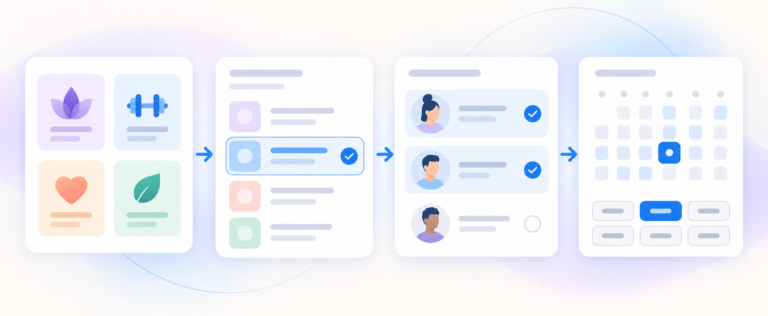


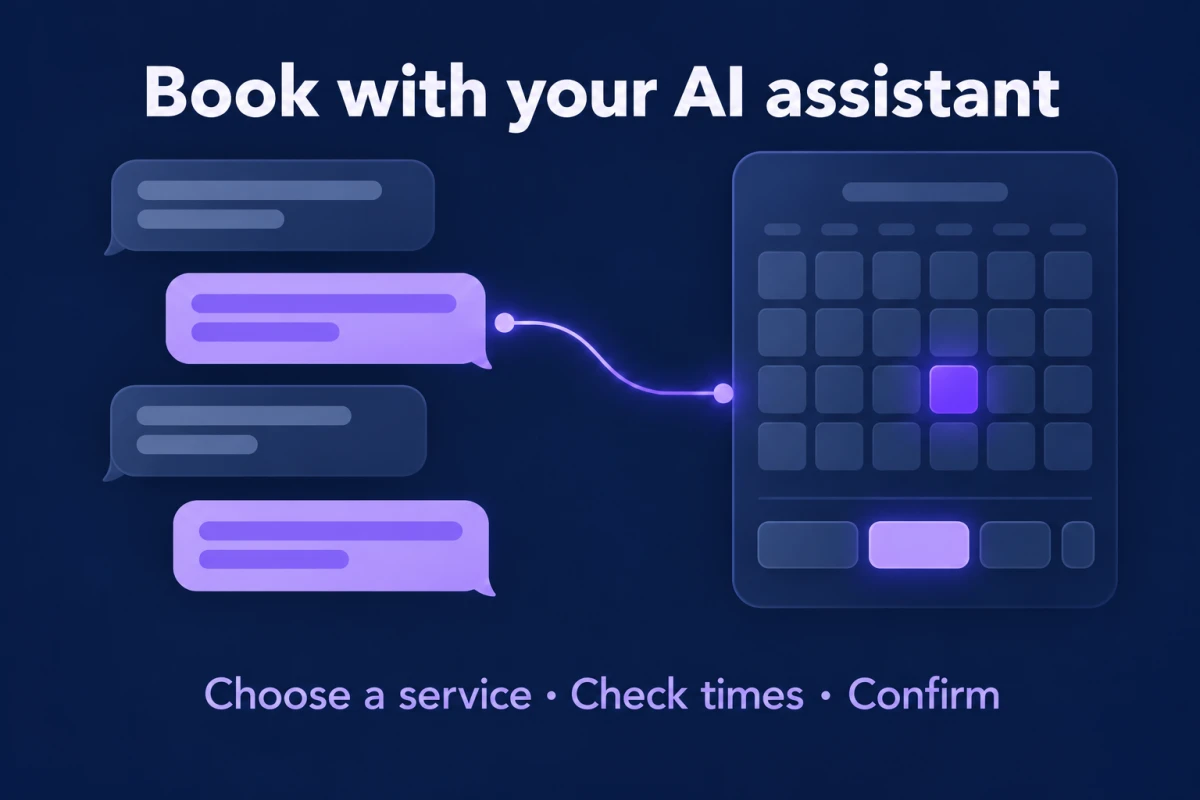
WordPress appointment booking with AI assistants is possible with Creavi Appointment Booking Calendar. You choose which published services customers may book, enable a public connection and share its address. A customer using a compatible AI app can ask for a service, check available times and submit a booking request without a WordPress account. You can also share a dedicated browser booking page for anyone whose app cannot connect.
This uses the customer’s own AI app. It does not add a chatbot to your website. Creavi remains the source of the service details, booking questions and available times.
How a customer books through an AI assistant
Creavi’s public customer connection lets a compatible app use four booking tools: open the selected services, check availability, prepare a booking for review and confirm it. A typical journey looks like this:
- The customer adds your public MCP address to an AI app that supports remote connections without sign-in.
- They ask for a service and a suitable time, such as “a consultation next Thursday morning.”
- The app reads the services you selected and asks Creavi for available times.
- The customer chooses a time and supplies the fields that service requires. These may include a name, email, custom answers or consent.
- Creavi prepares a summary. The app should show it and ask the customer to confirm before calling the confirmation tool.
- Creavi returns a receipt for a confirmed booking or, if that service requires manual approval, a booking request awaiting approval.
Compatible chat apps may also show Creavi’s optional interactive booking form inside the conversation. The exact presentation depends on the app. Creavi uses its existing service availability rules, including minimum notice, buffers, local booking conflicts and connected calendar busy times when those connections are working.
Set up customer booking in WordPress
Install and activate Creavi Appointment Booking Calendar from WordPress.org on a site that uses HTTPS. Then:
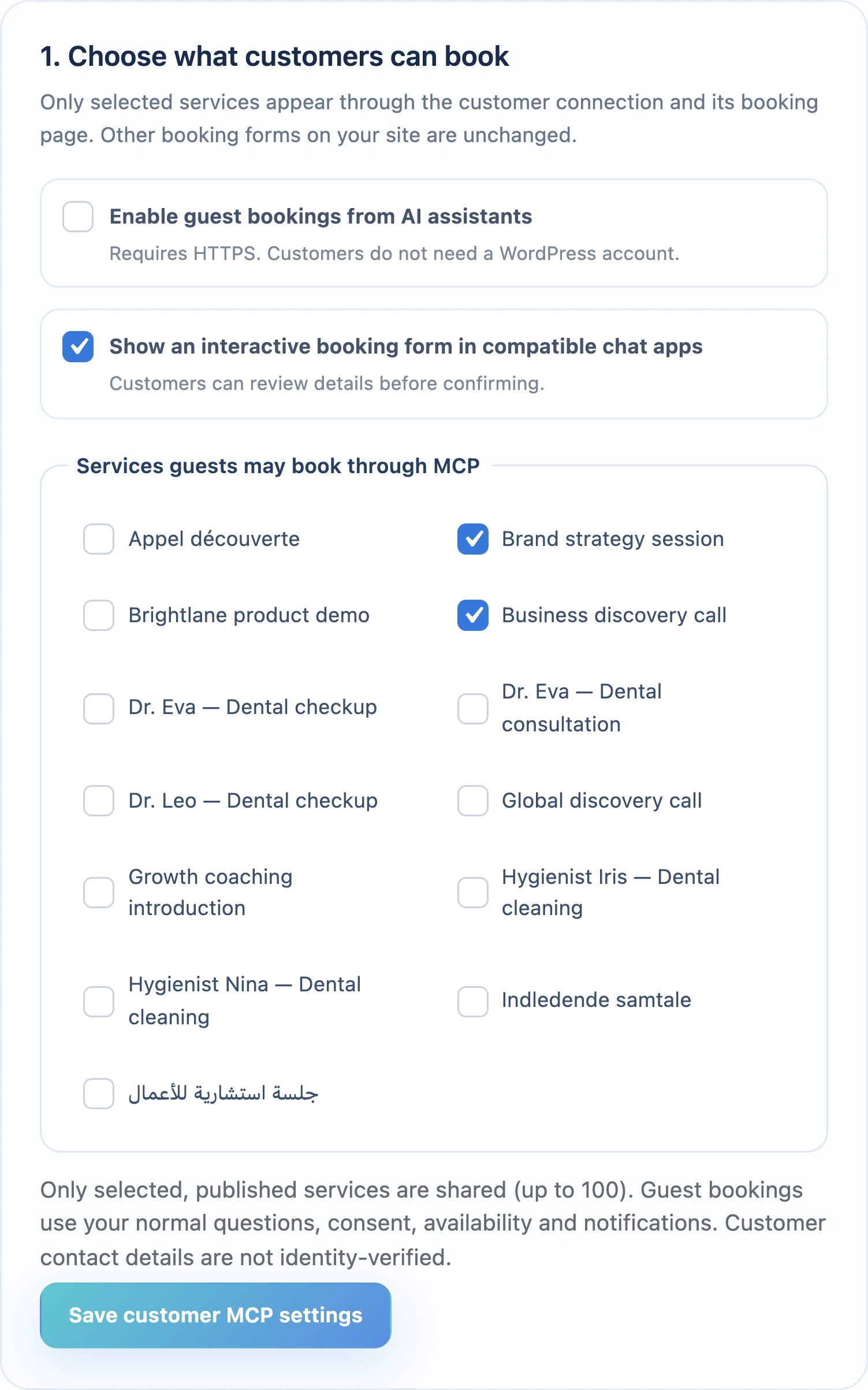
- Open Creavi Booking → API & MCP → MCP in WordPress.
- Under Let customers book from an assistant, select the published services customers may book. Only selected, published services without a password are exposed.
- Tick Enable guest bookings from AI assistants and save the customer MCP settings.
- Copy the customer MCP address. Share this with customers who have a compatible AI app.
- Copy the booking page for customers without MCP. Share this link beside the MCP address so everyone has a way to book.
Do site owners need the WordPress MCP Adapter? Not for this public customer booking route. Creavi provides the customer MCP connection itself. The official adapter is required only if you also want to use the separate private site-owner connection described below.
The customer address is public and does not require a WordPress login, username, password or API key. It is limited to the services you selected. The settings screen also checks whether HTTPS is active and whether at least one bookable service is selected. If you are organizing a larger range of services first, see our guide to building a WordPress service catalog with staff booking.
Which AI apps can use the connection?
The app must support a remote MCP server without sign-in and permit actions that create bookings. Pasting the address into an ordinary chat message does not connect the app. Features, plans and workspace permissions change, so check the app’s current instructions before recommending it to customers.
- Claude: Anthropic documents custom remote MCP connectors for Free, Pro, Max, Team and Enterprise plans. Free users can add one custom connector. Individual users can look under Customize → Connectors and choose No sign in; Team and Enterprise organizations need an owner to add the connector first. See the Claude connector guide.
- ChatGPT: OpenAI documents custom MCP servers in Plugins → + → Add custom MCP server on the web, with a No authentication option. Full MCP support, including booking actions that write data, is available for eligible Business and Enterprise/Edu workspaces, subject to their permissions. Pro connections are limited to read and fetch, so they cannot complete this booking flow. See ChatGPT’s connection guidance and authentication options.
These are the app makers’ published capabilities, not a promise that every account or workspace will accept your site’s connection. Test the customer address in the app and plan you intend to recommend. Keep the browser booking-page link available.
What the review step protects
Preparing a booking does not hold the time
When the app prepares a booking, Creavi validates the details and current availability, then returns a summary and a private booking token. No appointment or pending request is saved at this stage. The time remains available to other customers. The review lasts up to 15 minutes; if it expires, the customer needs a fresh availability check and review.
Confirmation saves the reviewed request
Creavi tells the AI app to show the full summary and ask the customer for explicit confirmation. Its confirmation tool requires the same booking token and a confirmation flag. The server cannot verify what a third-party app actually displayed to the customer, so the customer should check the details before approving the app’s action. Creavi checks the service and time again before saving. A service with automatic approval returns a confirmed booking; a service with manual approval returns a request awaiting the site owner’s decision.
If the connection drops, retry the same token
A connection might fail just as the customer confirms. The app should retry confirmation with the same booking token instead of preparing another booking. Creavi’s retry protection returns the existing receipt when that confirmation already succeeded. Keep the token private; customers do not need to copy or share it.
The receipt describes the booking status on your WordPress site. It does not prove that an email arrived or that a Google or Outlook event was created. Those deliveries depend on the service settings and the health of the connected services. A pending request may have different notification and calendar timing from an automatically approved booking.
A browser booking page for everyone else
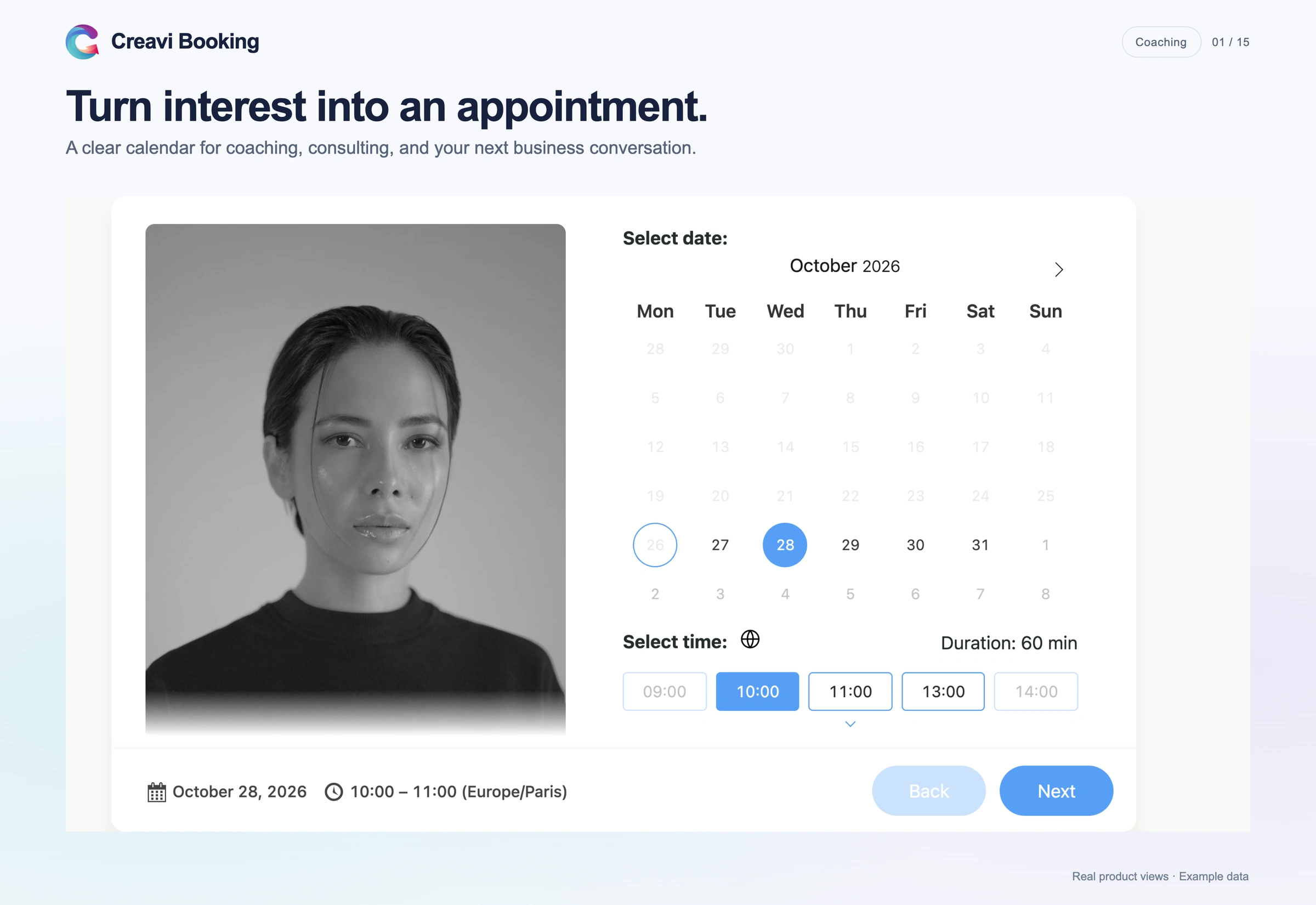
The second link on the customer settings screen opens Creavi’s dedicated customer booking form in a browser. Customers choose one of the selected services, find a date and time, enter the required details, review them and confirm without signing in or setting up an AI connector. Share this link in the same places as the MCP address. The Creavi homepage has examples of the plugin’s general booking experience; the dedicated customer form is accessed through the link generated on your own site.
Public customer connection or private owner connection?
| Customer connection | Private owner connection | |
|---|---|---|
| Who uses it? | Your customers | You or your team |
| Sign-in | No WordPress account or credentials | Restricted connection with a WordPress Application Password |
| Site requirements | HTTPS and at least one selected, published service | HTTPS, WordPress 6.9 or newer, and the official MCP Adapter 0.6.1 or newer |
| Booking scope | Selected public services, with preparation and confirmation | Permissions set for that private connection; booking creation enabled separately |
| Share publicly? | Yes, share the customer address | No, keep its address and credentials private |
If you want to connect your own assistant through the private owner connection, install and activate the official WordPress MCP Adapter (version 0.6.1 or newer) on WordPress 6.9 or newer. Then enable the owner MCP connection in Creavi Booking → API & MCP → MCP. If you are building an authenticated integration, the Creavi Booking REST API guide covers that developer workflow. Never give a customer your owner Application Password.
Frequently asked questions
Does this install an AI chatbot on my website?
No. Customers connect from their own compatible AI app, or use the dedicated browser booking page you share.
Does the customer need a WordPress account?
No. The public customer connection and the browser booking page do not require a customer WordPress account.
Is a time reserved during review?
No. Preparing a booking does not reserve it. Creavi checks availability again when confirmation is submitted, and an unconfirmed review expires after 15 minutes.
Can customers cancel, reschedule or pay through this connection?
No. The customer connection provides service discovery, availability checks and booking creation. Handle changes and payments through your usual process.
What if the AI app cannot connect?
Send the customer the dedicated browser booking-page link from the same Creavi settings screen. They can complete the booking there without an AI app.
Try both booking routes on your site
Install Creavi free from WordPress.org, publish a test service and enable customer booking. Check the selected services, required fields, review and final status in a compatible AI app. Open the browser booking-page link on desktop and mobile too. Before sharing either address widely, confirm that the test booking or pending request appears in All Bookings, and check any email and connected calendar delivery your service uses.