


To create a WordPress service catalog with staff booking, set up each bookable service, give each person a shared staff calendar, then build a catalog that groups your services into categories and lets customers compare providers. In Creavi Appointment Booking Calendar, all three live under the Creavi Booking menu, and one shortcode places the catalog on any page. Service Catalogs and shared staff calendars are included in the free plugin on WordPress.org.
We develop Creavi and use its own settings and booking flow in this guide.
How a WordPress service catalog works
A WordPress service catalog with staff booking combines four building blocks. Each one has its own place in the WordPress admin.
- Service: A bookable appointment with its own duration, booking form, meeting method and emails. Set it up in Creavi Booking → All Services.
- Staff calendar: One person’s shared schedule for available dates, start times, minimum notice, buffer and timezone. Set it up in Creavi Booking → Staff Members.
- Service catalog: The customer-facing menu, shown as a simple list or category cards. Set it up in Creavi Booking → Service Catalog.
- Booking option: A catalog entry linked to an existing service. In category cards, customers see each option as a provider. Add it in the catalog editor’s Organize step.
The key idea is simple. In Creavi, a provider is a booking option that points to a service. If two people offer the same consultation, you create one service for each person, connect each service to that person’s staff calendar and add both services to the same entry in the catalog. Customers see one consultation and choose who they want to book with.
Simple list or category cards?
Creavi offers two catalog layouts. Choose the one that matches how customers think about your offer.
- Simple list: Customers choose a service, then a date and time. It works well for a focused set of services with no separate provider-selection step.
- Category cards: Customers choose a category, service, provider, then a date and time. They can compare one or several providers. This suits larger offerings and services delivered by several people.
A simple list is often enough for a consultancy with a few meeting types. Category cards help when visitors need to browse, for example in a clinic, salon, studio or advisory firm where several specialists offer overlapping services.
Step 1: Prepare your services
Every catalog entry links to an existing service, so start there. If you are new to Creavi, our guide to adding appointment booking to WordPress covers the service editor in detail.
- Publish each service you want to list. The catalog editor only offers published services that are not password protected.
- Set the right duration. Customers see each option’s length, and the available times follow that service’s duration.
- Create one service per person when you want provider choice. For example, “Initial assessment with Anna” and “Initial assessment with Leo”.
- Add a service image. Provider cards in the catalog use the linked service’s image, so a portrait of the person works well here. Without an image, the card shows the first letter of the name.
- Finish the form and emails. The booking form, meeting method and notifications still come from each service’s own settings.
Step 2: Set up shared staff calendars
Skip this step if each service has its own schedule and nobody delivers more than one service. Otherwise, a shared staff calendar keeps one person’s availability in sync across everything they offer.
- Go to Creavi Booking → Staff Members and select Create staff calendar.
- Enter a Calendar name, usually the person’s name.
- Set the Available Booking Days and choose start times in the Visual Time Slot Selector. The staff calendar also holds the minimum notice, buffer and timezone.
- Save the calendar.
- Open each service this person delivers. In Available Booking Days, set Availability source to their staff calendar instead of “This service’s own schedule”, then update the service.
Each service keeps its own appointment duration. Everything else about when the person is available comes from the shared calendar, and changes to it apply to every connected service.
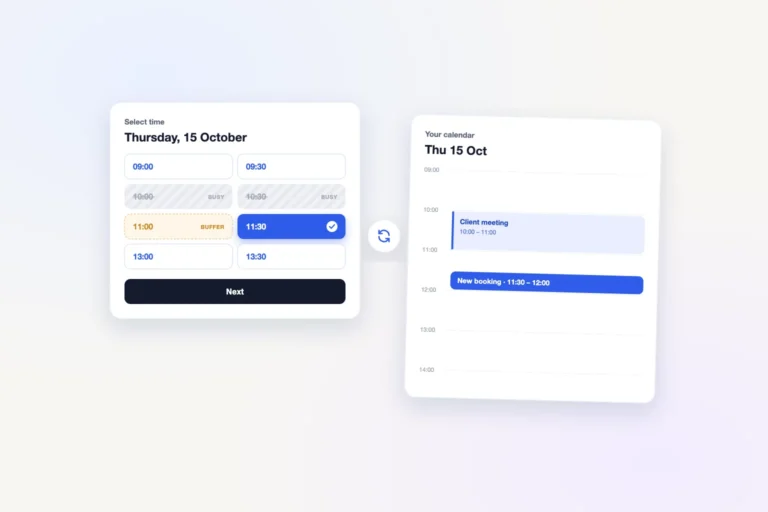
Once a service is connected, a booking in any of that person’s services blocks the overlapping time in all their other connected services. Creavi takes each booking’s duration and buffer into account and checks the time again before saving. Read more about how this works alongside other protections in our guide to preventing double bookings in WordPress.
Staff calendars and Google or Outlook are separate. A staff calendar is a schedule stored in WordPress. Google Calendar and Outlook Calendar remain optional connections on each service. Connect them as well if you want meetings in the person’s external calendar to block times and new bookings to appear there. See our guides to Google Calendar sync and Outlook Calendar integration.
Step 3: Create your WordPress service catalog
Go to Creavi Booking → Service Catalog and select Create catalog. You can also select Import demo to start from an editable example catalog.
The editor has three steps: Layout, Organize and Preview & style.
Layout. Enter a Catalog name and choose Simple list or Category cards, then continue.
Organize a simple list. Select + Add service, choose an Existing service and, if you like, enter a Display label. Use the arrow buttons to set the order customers will see.
Organize category cards. Build the catalog from the top down:
- Select + Add category, enter a Category name and choose an image. The Card detail option can hide the count or show the number of service types or booking options.
- Inside the category, select + Add service type and give it a name and an image. This is what customers choose after the category, for example “Initial assessment”.
- Inside the service type, select + Add booking option for each provider. Choose the existing service and enter the person’s name as the Display label. If you leave the label empty, customers see the service title.
A service can only be added once within the same service type. Use the arrow buttons to reorder categories, service types and options.
Step 4: Preview and style the catalog
In Preview & style, choose a Service selection style: Photo cards for large images, Minimal cards for compact portraits or Text cards for a clean layout without images. You can also set the catalog accent color, card columns, provider card columns, corner radius, box shadow and border.
The live preview shows the customer path as you work. When you are happy with it, select Save catalog.
Step 5: Add your WordPress service catalog to a page
Copy the catalog shortcode from the editor. It uses this format, with your own catalog ID:
[creavibc_service_catalog id="123"]In the block editor, add a Shortcode block and paste it. In Elementor or another page builder, use its shortcode widget. Only saved catalogs appear on the page.
Your existing service shortcodes keep working. You can still use [creavibc_booking_button id="123"] for a popup button or [creavibc_booking_inline id="123"] for an inline calendar on a landing page, and use the catalog on a central booking page. Our Elementor booking guide shows both placements.
Step 6: Test the booking flow
Open the page in a private browser window, so you see what a visitor sees.
- Choose a category and a service. Check the names, images and durations.
- Compare providers. All providers are selected by default. Customers can untick some, or use All providers to compare everyone. Each time shows either the provider’s name or how many providers are free.
- Book a test appointment. After you select a time and continue, Creavi checks the slot again and loads that service’s booking form on the page.
- Test overlap protection. Open another service connected to the same staff calendar. The time you just booked, plus any buffer, should no longer be available.
Fictional example: a clinic with two practitioners
This example is invented to illustrate the setup.
A physiotherapy clinic has two practitioners, Anna and Leo. Both offer a 60-minute initial assessment. Anna also offers a 30-minute sports massage.
- Services: “Initial assessment with Anna”, “Initial assessment with Leo” and “Sports massage with Anna”.
- Staff calendars: Anna’s two services connect to Anna’s calendar. Leo’s service connects to Leo’s calendar.
- Catalog: the category “Physiotherapy” contains the service type “Initial assessment” with two booking options, labeled Anna and Leo. The category “Massage” contains “Sports massage” with one option, Anna.
A client books Anna’s assessment at 10:00. Anna’s 10:30 massage slot disappears, because her assessment runs until 11:00. Leo’s availability does not change.
Troubleshooting
- A service is missing from Existing service: It may be a draft or password protected. Publish the service without a password.
- The catalog does not appear on the page: Save the catalog, copy its shortcode again and check that each option links to a published service.
- “All published services are already in this group”: Create another service, or add an existing service to a different service type.
- “No scheduled dates this month”: Check the selected providers’ staff calendars or service schedules, rolling windows, excluded dates and minimum notice.
- The service editor says a staff calendar is unavailable: Choose another staff calendar or switch to the service’s own schedule.
- A time disappears after the customer continues: Someone may have booked it. Creavi returns the customer to the calendar to choose another time.
If expected times are missing, also check connected Google or Outlook calendars, which can block busy times. After configuration changes, clear your WordPress, hosting and CDN caches.
Tell us how your catalog should work
We built Service Catalogs and shared staff calendars around requests from people running several services on one site. If your organization needs a different catalog or provider workflow, tell the Creavi team how it should work for you. If you want help planning a catalog for your team, book a call with the Creavi team.
Frequently asked questions
Can I build a WordPress service catalog for free?
Yes. Service Catalogs and shared staff calendars are included in the free Creavi plugin on WordPress.org.
How do customers choose a staff member?
In a category catalog, customers choose a category and a service, then select one or several providers to compare their available times. Each provider is a booking option linked to that person’s service.
Does one booking block the same person’s other services?
Yes, when those services share the same staff calendar. A booking blocks the overlapping time, including any buffer, in every service connected to that calendar.
Do I need Google Calendar or Outlook for staff calendars?
No. Staff calendars are stored in WordPress. Google Calendar and Outlook remain optional connections on each service.
Do my existing booking shortcodes still work?
Yes. Service popup and inline shortcodes keep working after you add a catalog.
Does the catalog show prices or take payments?
The catalog shows service names, images and durations. The catalog does not collect payments during booking. If your workflow needs it, tell us how it should work.
Start building your service catalog
Install Creavi, prepare your services and staff calendars, then publish your WordPress service catalog on a booking page.
3 Comments
[…] many services or several providers? Follow our guide to building a WordPress service catalog with staff booking, so customers can browse categories and compare available people on one […]
[…] to that person’s staff calendar. A booking then blocks overlapping times in the others. Our service catalog and staff booking guide shows the […]
[…] each can have a service linked to their own staff calendar. A service catalog can then let clients choose their practitioner and compare available […]