
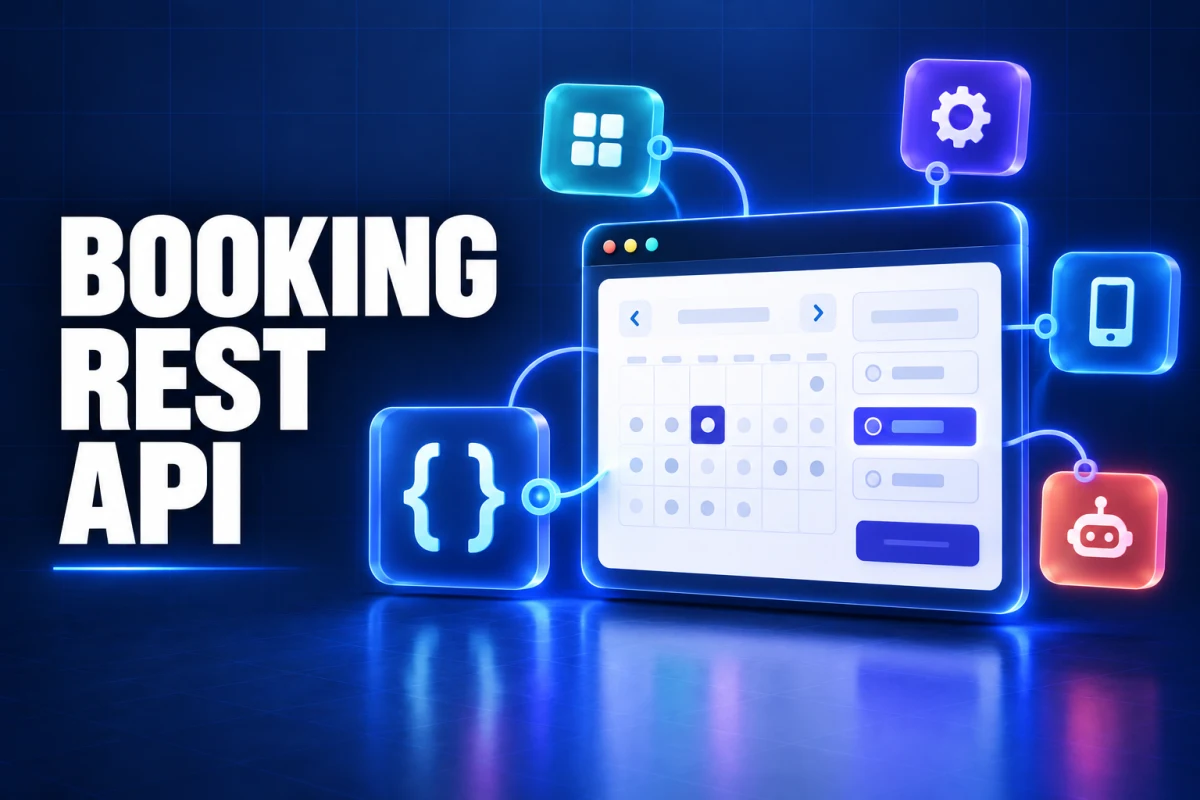
Creavi Booking now includes a secure WordPress booking REST API. Developers and site owners can connect appointment scheduling to CRMs, automation platforms, mobile apps, reporting tools and AI assistants while keeping services and bookings inside WordPress.
The API can list published services, return service details and live availability, create bookings, and retrieve booking records when the connection has permission. It is available in Creavi Booking 1.6.1 and can be configured directly from the WordPress admin area.
This article explains what the Creavi REST API does, which integrations it can support and how to create your first connection.
Published by the Creavi Editorial Team. Product functionality checked on 22 September 2026. Creavi develops the plugin discussed in this article. Current capabilities and limits are stated separately so developers can evaluate the API accurately.
What is the Creavi WordPress booking REST API?
The Creavi REST API is an authenticated interface for reading booking information and creating appointments from outside the standard Creavi booking form. It uses the WordPress REST API and WordPress Application Passwords, so each integration receives its own credentials and permissions.
In practical terms, an approved application can ask your WordPress website which services are available, find open times for a service and create a booking using the same scheduling rules as the customer-facing calendar.
The website remains the source of truth. Service duration, timezone, required customer fields, custom questions, consent requirements and availability are returned by the API instead of being duplicated in another system.
What can you build with a WordPress booking REST API?
| Integration | How the Creavi API can help |
|---|---|
| CRM workflow | Check availability, create an appointment and save the Creavi booking ID with the customer record. |
| Automation | Connect a form, lead-routing process or internal workflow to a real booking action. |
| Mobile app | Show services and open times in a custom interface while WordPress manages the booking rules. |
| AI assistant | Give an authorized assistant tools for finding services, checking times and submitting a booking after the customer confirms the details. |
| Customer portal | Display bookings that the connection is allowed to read. |
| Reporting tool | Retrieve permitted booking records for an approved operational report. |
The API is the integration layer. It does not automatically install a chatbot, CRM connector or no-code workflow. Your application or automation calls the API and decides how the returned data is presented and used.
Available WordPress booking REST API endpoints
The API base URL is https://your-site.example/wp-json/creavi-booking/v1. Available endpoints include:
| Method | Endpoint | Purpose |
|---|---|---|
| GET | /connection |
Verify the connection and view its permissions. |
| GET | /services |
List published booking services. |
| GET | /services/{id} |
Read service rules, required fields and consent requirements. |
| GET | /services/{id}/availability |
Return available start times for a date. |
| POST | /bookings |
Create a booking. |
| GET | /bookings |
List booking records allowed by the connection. |
| GET | /bookings/{id} |
Retrieve one permitted booking. |
The full Creavi Booking REST API documentation contains request examples, response fields, error codes and the OpenAPI 3.1 specification.
A simple appointment-booking workflow
A reliable integration normally follows four steps:
- Request the service details to learn its duration, timezone and required customer fields.
- Request availability for the customer’s chosen date.
- Show the available starts and ask the customer to confirm one.
- Create the booking with the exact returned start time and a unique
Idempotency-Key.
The idempotency key protects the customer from accidental duplicate bookings. If a network request times out, the integration should retry the same booking body with the same key. Creavi retains retry protection for seven days.
curl --user 'api-user:application-password' \
  --header 'Content-Type: application/json' \
  --header 'Idempotency-Key: 3b0c43b5-42dc-42a6-8ed4-61a984b203ef' \
  --data '{
    "service_id": 3506,
    "starts_at": "2026-09-24T09:30:00+02:00",
    "customer": {
      "name": "Alex Example",
      "email": "alex@example.com"
    }
  }' \
  'https://your-site.example/wp-json/creavi-booking/v1/bookings'
Use the exact field structure returned for the service. A service may also require a phone number, custom answers or consent before a booking can be accepted.
Permissions and security are controlled per connection
Every API integration is created as a named connection under Creavi Booking → Booking API. The administrator selects only the permissions that connection needs:
- Read services
- Read availability
- Create bookings
- Read bookings created by this connection
- Read all bookings
Reading all bookings is a sensitive permission and is disabled by default. A public-facing assistant that only finds times and creates appointments does not need access to every customer’s booking.
Credentials are shown once when the connection is created. Store them in a server-side secret manager or another protected configuration—not in public JavaScript, a webpage or a mobile-app bundle. Use HTTPS for every production request. Administrators can set an expiry date and revoke a connection at any time.
Calendar-aware availability without exposing connection errors to customers
When a service has a connected Google or Outlook calendar and busy-time blocking is enabled, Creavi removes conflicting times from availability. This applies to the normal booking interface and API availability checks.
Creavi Booking 1.6.1 also improves resilience during a temporary calendar authentication or provider outage. Local service availability remains usable instead of showing every time as unavailable. The affected external calendar check and event delivery pause, while a private diagnostic warning is shown to the WordPress administrator. Customers are not shown an internal connection error.
This behavior keeps the booking journey available, but administrators should reconnect or repair the calendar promptly. During an outage, the external calendar cannot supply current busy events or receive the new appointment.
How to create a Creavi API connection
- Install or update Creavi Appointment Booking Calendar to version 1.6.1 or later.
- In WordPress, open Creavi Booking → Booking API.
- Create a clearly named connection for one application or workflow.
- Enable only the permissions that integration requires.
- Choose an expiry date when temporary access is appropriate.
- Copy the generated username and Application Password immediately; the password is shown once.
- Download the ready-to-import Postman collection or use the API documentation to make the first request.
- Call
/connectionto verify authentication before building the complete workflow.
Create a separate connection for each app, agency or automation. Separate credentials make access easier to audit and revoke without interrupting other integrations.
Current API scope
The first API version focuses on the core appointment workflow: services, availability, booking creation and permitted booking retrieval. It does not currently provide endpoints for cancellation, rescheduling, payment collection, webhooks or shared staff and resource management.
Stating that boundary matters. Developers can build against the functions available today without depending on an unannounced feature. The versioned /v1 namespace also gives Creavi room to extend the API while protecting existing integrations.
Frequently asked questions
Does Creavi have a WordPress booking REST API?
Yes. Creavi Booking 1.6.1 includes an authenticated REST API for services, availability, booking creation and permitted booking retrieval.
Can the API be used with an AI assistant?
Yes. A developer can give an authorized assistant tools that call the Creavi API to find services, check availability and create a booking. The API is the backend integration; it does not include a ready-made chatbot.
Can I connect Creavi to a CRM or automation platform?
Yes, when the platform can send authenticated HTTP requests directly or through a secure connector. The integration can use the available endpoints and the permissions granted to its connection.
How is the REST API authenticated?
Creavi uses a restricted WordPress technical account and an Application Password generated for the named connection. Requests use Basic Authentication over HTTPS.
Can an API connection read every booking?
Only when an administrator explicitly grants the sensitive “Read all bookings” permission. A connection can instead be limited to bookings it created.
Does the API prevent duplicate booking requests?
Yes. Booking creation requires an Idempotency-Key. Retrying the same request with the same key returns the original result instead of creating another appointment.
Is there an OpenAPI specification?
Yes. The documentation includes an OpenAPI 3.1 specification and a Postman collection to help developers explore and test the endpoints.
Start building with Creavi Booking
The Creavi WordPress booking REST API opens the appointment workflow to the systems your organization already uses. Start with one narrow connection, verify the service and availability responses, create a test booking and add broader permissions only when the workflow needs them.
Download or update Creavi free on WordPress.org, then follow the REST API documentation to create your first connection.
Related reading: Google Calendar booking integration · Outlook Calendar integration · Booking forms with custom fields · Live booking demo