


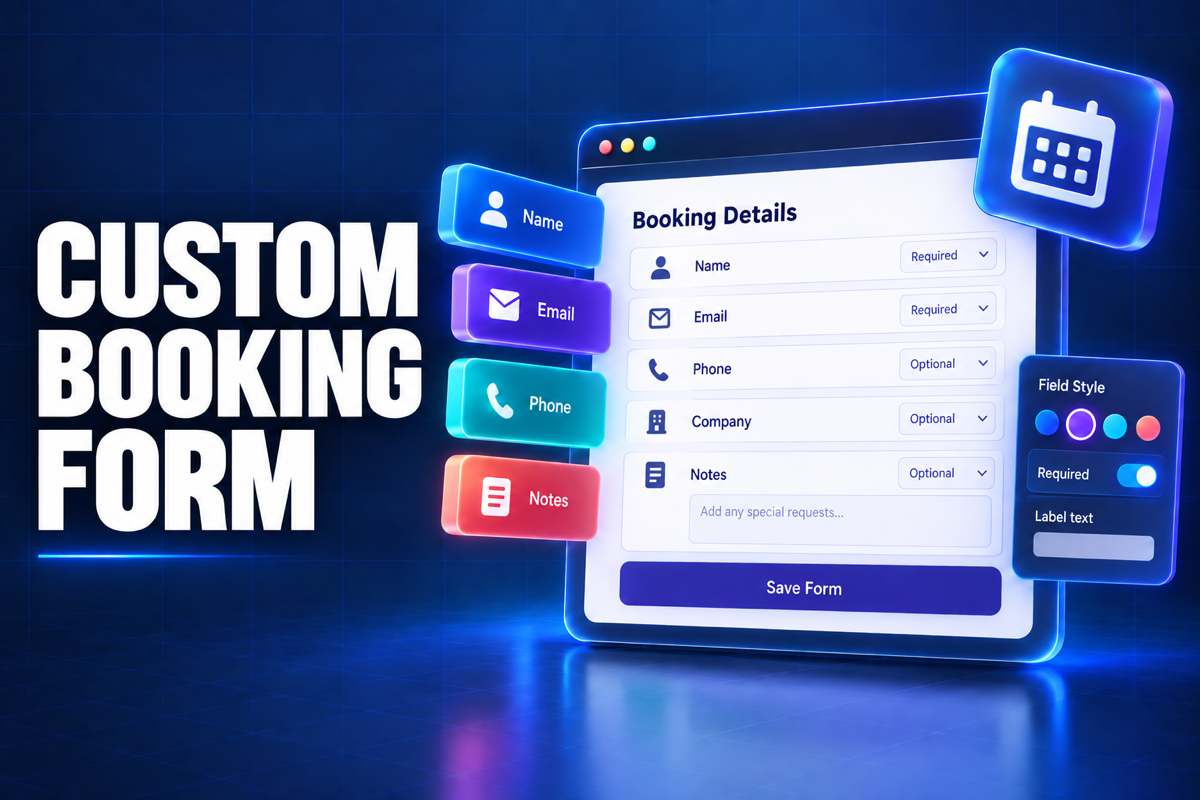
A WordPress booking plugin with custom fields should let you collect the information that matters for each appointment without forcing every customer through the same long form. Creavi lets you choose which contact fields appear, rename their labels, decide what is required and add your own questions for each service.
The result is a booking form that fits the appointment. A product demo can ask about the company and use case. A consultation can ask about the customer’s goal. A training session can ask how many people will attend. You decide what is useful before the meeting.
This guide explains what can be customized in Creavi, how to keep a booking form easy to complete and how to request the field types your workflow still needs.
What is a WordPress booking plugin with custom fields?
A WordPress booking plugin with custom fields combines appointment scheduling with a form you can adapt. Customers still choose a date and time, but the details step is based on the questions you need rather than a fixed set chosen by the plugin developer.
In Creavi, every service can have its own booking form. You can keep a short form for an introductory call and create a more detailed form for an assessment or project consultation. The form remains connected to the service availability, confirmation emails, reminders and booking record in WordPress.
What can you customize in the Creavi booking form?
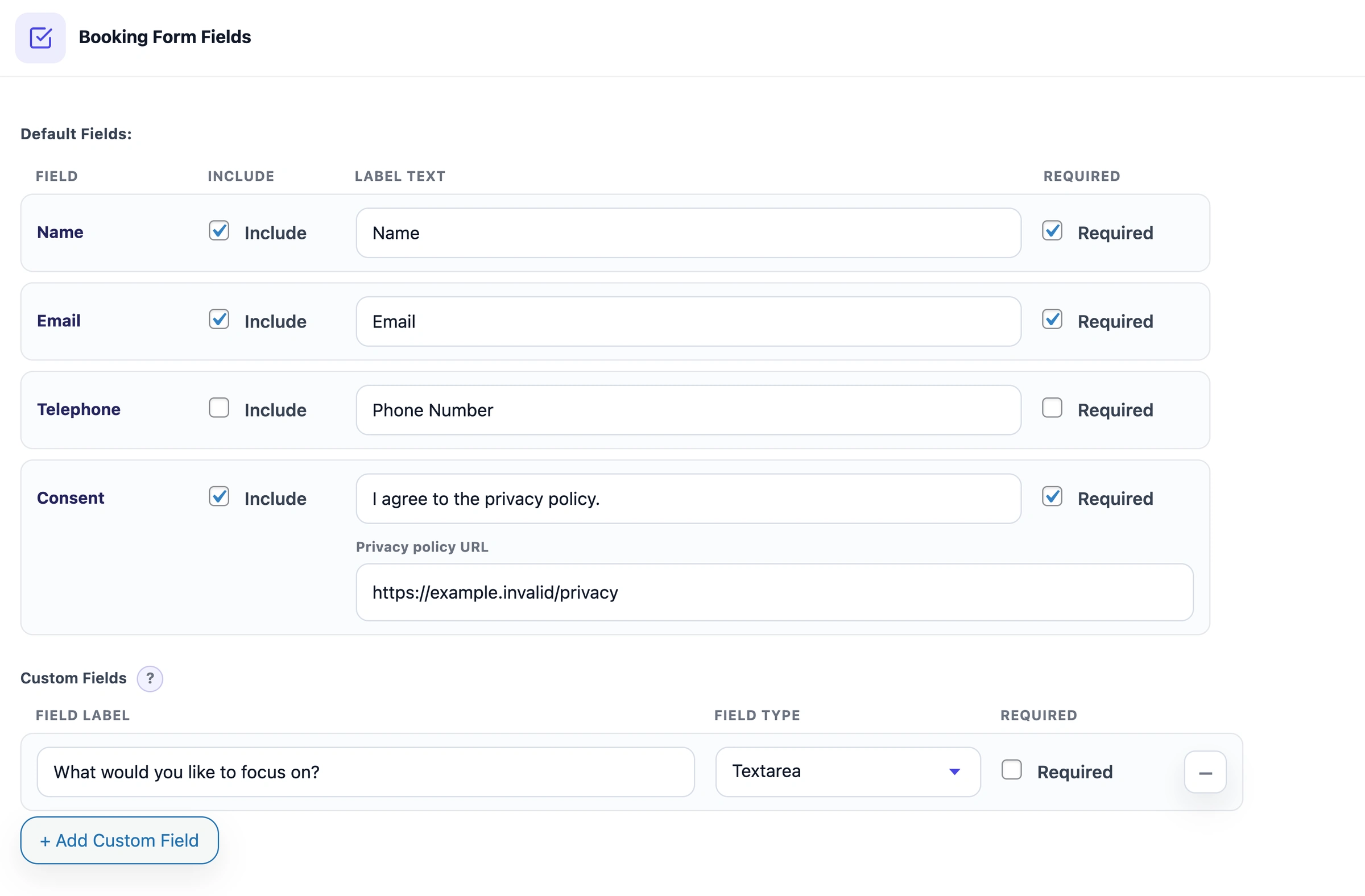
Creavi includes editable default fields, four custom field types, privacy consent controls and customer-facing text labels.
| Form element | What you can change | Example use |
|---|---|---|
| Name | Show or hide it, edit the label, make it required or optional | Full name, Contact name |
| Show or hide it, edit the label, make it required or optional | Work email, Email for confirmation | |
| Phone | Show or hide it, edit the label, make it required or optional | Mobile number, Best phone number |
| Text field | Add your own label and required setting | Company, Project name, Reference number |
| Textarea | Add a longer-answer question | What would you like to discuss? |
| Telephone field | Collect a phone value with the correct input type | Alternative contact number |
| Number field | Restrict the answer to a numeric value | Number of attendees |
| Consent | Edit the text and privacy link, then make it required or optional | Agreement to a privacy policy |
| Booking labels | Rename key instructions and buttons for each service | Choose a date, Continue, Tell us about your project |
You can add as many custom questions as the form needs. Custom questions are shown in the sequence in which they are added. Add questions in the order you want customers to see them, then confirm the sequence in the live preview before publishing the service.
A booking form should fit the appointment
The best form is not the one with the most fields. It is the one that helps the customer book and gives the person running the appointment enough context to prepare.
Start with one question: what information will change how we handle this meeting?
If an answer will not affect preparation, routing or follow-up, it may not belong in the booking form. It can often wait until the conversation.
Product demonstrations
A demo form might ask for the company name, website and intended use. This gives the salesperson context without turning the form into a qualification survey. See the guide to the WordPress booking plugin for sales teams for a complete demo-call workflow.
Coaching and consulting
A coach or consultant may ask what the customer wants to achieve and whether there is a specific topic to cover. A Textarea field gives the customer room to answer in their own words.
Legal and financial consultations
An initial form can collect a broad matter type, reference number or meeting goal. Avoid requesting account credentials, identity documents or highly sensitive details through a general booking form. Collect only what is appropriate for the website’s security and privacy setup.
Interviews and training
An interview form can request a role or application reference. A training form may ask for the number of attendees and one accessibility requirement. Separate services can use separate forms, so the questions for an interview do not have to appear on a workshop booking.
Edit labels so the form sounds like your organization
Clear labels reduce hesitation. “Name” may be enough for one service, while “Contact person” or “Participant name” may be clearer for another.
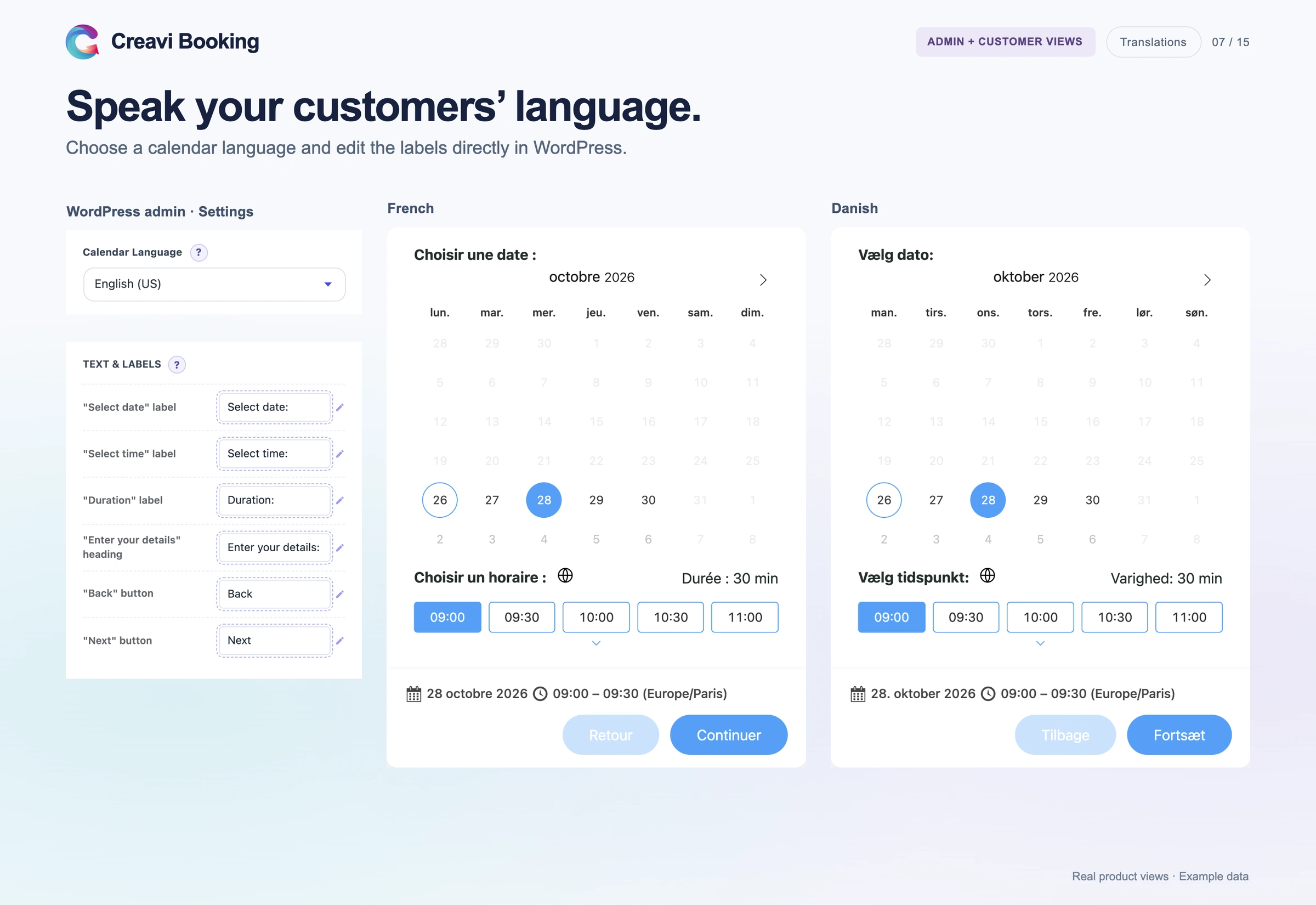
Creavi lets you edit the labels for Name, Email and Phone. It also lets you change customer-facing booking text for each service, including:
- Select date
- Select time
- Duration
- Enter your details
- Back
- Next
For example, a discovery call might use “Choose a day”, “Choose a time” and “Tell us about your goals”. A support appointment might use “Select a support time” and “Describe the issue”. These changes keep the flow familiar while making the wording relevant.
The calendar journey stays focused on three useful actions: choose a date, choose a time and provide the requested details. Use the Service Catalog when customers should choose a service or provider before opening the booking form.
Required or optional: make the choice deliberately
A required field should be necessary to deliver the appointment. Marking every field as required can increase form abandonment, especially for first-time visitors.
A practical form often uses:
- Name and email as required contact details
- Phone as optional unless the appointment is a telephone call
- One preparation question as required
- Additional notes as optional
- Consent according to the organization’s privacy requirements
Test the form on a phone as well as a desktop screen. If the details step feels long on mobile, remove a question or make it optional.
How custom booking information is stored and shared
When a customer completes the form, Creavi saves the answers with the booking in WordPress. Administrators can review the appointment and its custom information from the booking record.
Selected bookings can also be exported to CSV or Excel. The export can include customer details, service information, appointment time and custom answers. A CSV file can be opened in a spreadsheet or imported into Google Sheets.
Email and calendar templates support booking details through dynamic tags. The {phone} tag can insert the phone number, while {custom} can include the submitted custom answers together where that summary is useful.
This gives the form a purpose beyond data collection. The answers can help the host prepare, appear in a notification and remain available for an approved reporting process.
How to create a customizable booking form in WordPress
- Install Creavi Appointment Booking Calendar from WordPress.org.
- Create or edit the service that needs its own form.
- Open Booking Form Fields in the service editor.
- Show only the default Name, Email and Phone fields that the service needs.
- Edit each visible label and choose whether the field is required.
- Add Text, Textarea, Telephone or Number questions in the sequence customers should see them.
- Configure the consent text and privacy-policy link when required.
- Edit the booking-interface labels in the appearance settings.
- Review the live preview, save the service and complete a test booking.
You can show the finished booking flow as an inline calendar or open it from a popup button. The Elementor booking guide explains both methods, and the Creavi booking demo shows the customer experience.
Which booking fields are you missing?
Every organization asks customers something different. Creavi currently provides Text, Textarea, Telephone and Number custom fields, plus editable contact and consent fields.
Would a dropdown, checkbox, date field, file upload or another input make your booking process easier? What information do you usually collect before an appointment?
Tell the Creavi team what field you need. Use the contact form to describe the appointment type, the question you want to ask and how the answer will be used. We review real booking workflows when deciding what to improve. You can also book a call with Julia if showing the workflow is easier than describing it.
The Creavi product roadmap separates available features from planned work. A suggestion is not a promise of a release date, but it gives the team practical evidence for future development.
Frequently asked questions
Can every Creavi service use a different booking form?
Yes. Each service can have its own default fields, custom questions, consent settings, availability, notifications and meeting setup.
Which custom field types are available?
Creavi currently supports Text, Textarea, Telephone and Number custom fields. Each field can have its own label and can be required or optional.
Can I rename Name, Email and Phone?
Yes. The default contact-field labels are editable for each service. You can also show or hide each field and choose whether it is required.
Can I change the booking button and step labels?
Yes. The service appearance settings include editable text for Select date, Select time, Duration, Enter your details, Back and Next.
Can I change the order of custom questions?
Custom questions appear in the sequence in which they are added. Add questions in the intended sequence and verify it in the preview before publishing.
Are custom answers included in exports?
Yes. Selected bookings can be exported to CSV or Excel with the custom form responses and core appointment information.
Do I need code to customize the form?
No. The available labels, field types, required settings and consent controls are configured in the WordPress service editor.
Choose a WordPress booking plugin with custom fields that fit
A customizable WordPress booking form should give you useful context without making customers work for an appointment. Creavi lets each service collect its own information, use relevant labels and keep the journey clear.
Download Creavi free from WordPress.org, create one service and test the form as a customer. If a field is missing, tell us what you need and why. Your workflow can help shape a future release.



4 Comments
[…] Mollie, Razorpay, and several regional gateways, available from the Standard plan and above. Creavi doesn’t process payments at all; it’s a scheduling tool, not a checkout. If deposits or upfront payment are part of your […]
[…] Tip: Every extra field lowers completions a little. Ask only what you’ll read before the call. See custom fields ideas. […]
[…] The consent checkbox has editable text and an optional privacy-policy URL. Point it to the privacy policy written in the same language as the service. Read more in our guide to WordPress booking forms with custom fields. […]
[…] reading: Google Calendar booking integration · Outlook Calendar integration · Booking forms with custom fields · Live booking […]