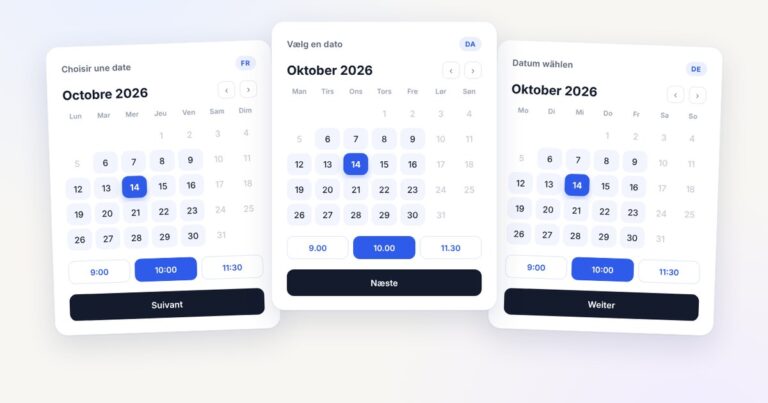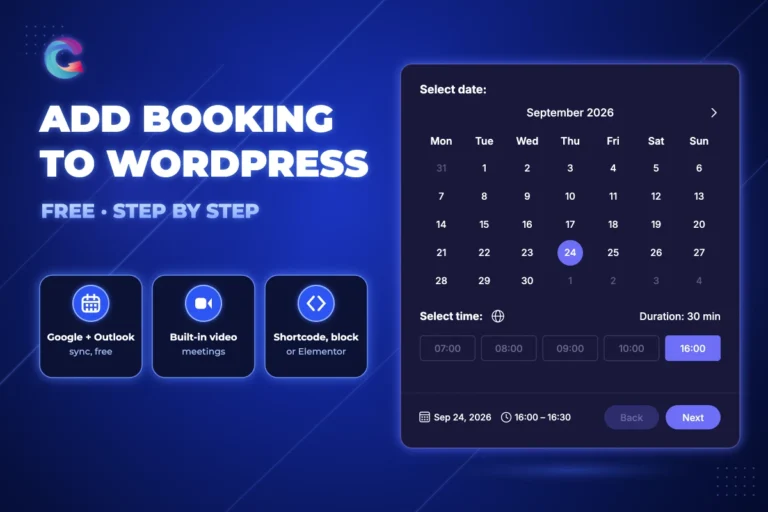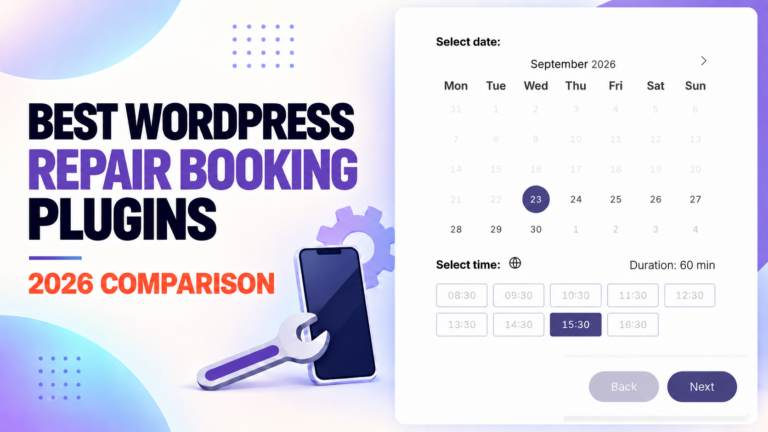

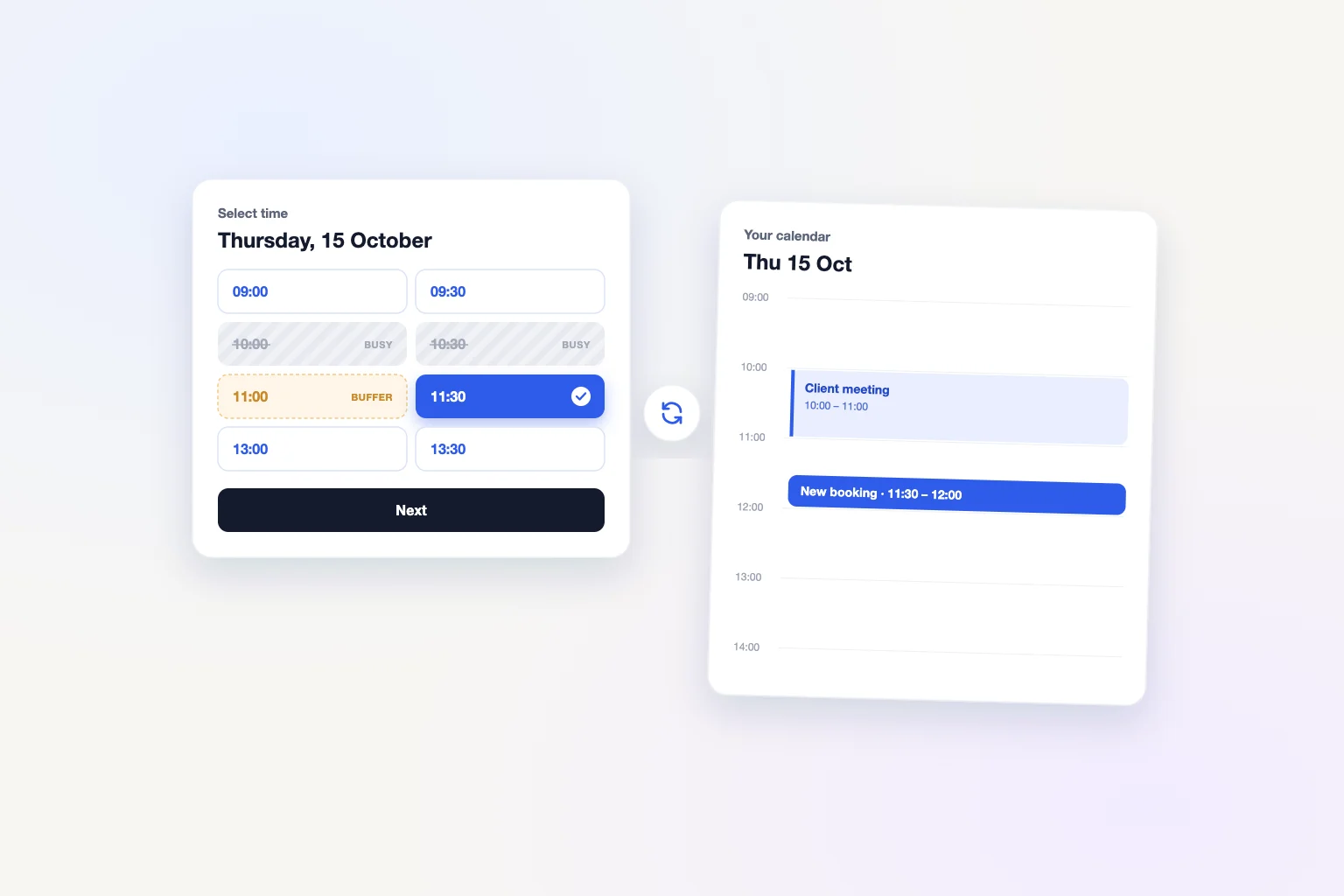
To prevent double bookings in WordPress, your booking plugin has to check every source of busy time before it saves an appointment: existing website bookings, your external calendar, buffers and notice rules. Creavi Appointment Booking Calendar does this for each service. It hides times that clash with local bookings and connected Google or Outlook events, adds optional buffers and rechecks the slot on the server before saving. All of it is included in the free plugin on WordPress.org.
Why double bookings happen
A double booking is rarely a single bug. It usually comes from one source of busy time that the booking form cannot see. The table shows the common causes and how to close each one.
| Cause | What happens | How Creavi handles it |
|---|---|---|
| Appointments made outside the website | A client books 14:00 online while a meeting already sits in your calendar | Busy events from a connected Google or Outlook calendar remove overlapping times |
| Two visitors choose the same time | Both see 10:00 as free and submit within minutes | A final server-side check refuses a time that is no longer available |
| No gap between appointments | A meeting runs over and the next client waits | An optional 5 to 60 minute buffer after each appointment |
| Very short notice | Someone books a slot starting in 20 minutes | A minimum booking notice for each service |
| Several services, one person | A consultation and a follow-up service both offer the same hour | Connect both services to the same calendar so each one sees the other’s events |
| Stale cached pages | A cached page shows a time that has since been booked | Availability loads through a non-cacheable request |
| Timezone confusion | A client arrives an hour early or late | Visitor or locked timezone, shown in the booking flow |
How Creavi checks a time before it is booked
Every Creavi service has its own scheduling rules. When a visitor opens the calendar, Creavi evaluates:
- the service’s available days and weekday start times;
- selected and excluded dates, such as holidays;
- the minimum booking notice;
- the appointment duration and any buffer;
- existing bookings saved on the website; and
- busy events in the connected Google or Outlook calendar, when busy-time blocking is enabled.
Only times that pass all of these checks appear as available. When the visitor submits the form, Creavi rechecks invalid times, insufficient notice, local conflicts and connected-calendar conflicts before saving. If the time is no longer free, Creavi rejects the conflicting booking instead of saving it.
This second check matters. A calendar page can stay open for a long time, and availability can change while a visitor fills in the form.
How to prevent double bookings with Creavi
These steps take a few minutes per service. Repeat them for every service that shares your time.
- Set realistic availability. In the service editor, choose the available days and start times for each weekday. Use a rolling window, for example the next 60 days, so clients cannot book too far ahead.
- Exclude closed dates. Add holidays, leave and training days as excluded dates.
- Add a minimum notice. Prevent bookings that start too soon to prepare for.
- Choose a buffer. Set a buffer from 5 to 60 minutes after each appointment. Creavi applies it to website bookings and to connected calendar events. The calendar event still shows the real appointment length.
- Connect your calendar. Connect Google Calendar or Outlook Calendar in the service and enable busy-time blocking. For Google, keep the appointments you want to block in the Primary calendar, which Creavi uses for busy-time checks and new events.
- Use the same calendar for related services. If one person delivers several services, connect each of them to the same calendar. A booking in one service creates an event that blocks the same time in the others.
- Check the timezone mode. Choose localized mode to show times in the visitor’s timezone, or locked mode to keep your business timezone for everyone.
- Test it. Add a test event to your calendar, then open the booking page while logged out. The time should no longer appear.
For a broader walkthrough, read how to add appointment booking to WordPress. Calendar-specific setup is covered in our guides to Google Calendar sync and Outlook Calendar integration.
Examples from different workflows
A consultant with several services. A consultant offers a 30-minute discovery call and a 90-minute strategy session. Both services connect to the same Google Calendar with busy-time blocking. A booked strategy session appears in the calendar and removes the same hours from the discovery call. Read more about booking for coaches, therapists and consultants.
A therapist who needs time between sessions. A 60-minute service with a 15-minute buffer leaves room for notes. A client cannot book 11:00 if the previous session ends at 11:00, because the buffer protects the next 15 minutes.
A sales professional with a busy calendar. Internal meetings and client calls already live in Outlook. With busy-time blocking on, prospects only see times that are free in Outlook. See how this fits sales booking workflows.
A legal or financial office that prepares in advance. A 24-hour minimum notice gives the team time to review documents before a first consultation. Excluded dates cover court days or office closures.
Caching and Cloudflare
A cached page can still show the booking widget, but it should never show yesterday’s availability. Creavi loads available times through a same-origin WordPress REST endpoint that is not cached, with the standard WordPress AJAX route as a fallback.
If Cloudflare challenges both routes, exclude only /wp-json/creavi-booking-frontend/v1/availability from that challenge. After changing booking settings, clear your WordPress, hosting and CDN caches so visitors load the current configuration.
When a calendar connection needs attention
A Google or Outlook connection can stop working, for example when access is revoked or expires. If Creavi cannot check a connected calendar, it keeps using verified local availability and local booking-conflict checks. Customers do not see a technical error.
The administrator sees a diagnostic on the service, and reconnecting the calendar clears the warning. Until you reconnect, events in that external calendar cannot block times, so treat the warning as a prompt to act quickly.
A checklist before you go live
- Busy-time blocking is enabled for every service that shares your calendar
- Related services use the same Google or Outlook calendar
- Buffers match how long you need between appointments
- Minimum notice and excluded dates are set
- The timezone mode suits online or in-person meetings
- A test event in your calendar hides the matching time on the website
- The booking page loads current times while logged out and through your CDN
What users say
A WordPress.org reviewer wrote that Creavi was simple to get running, lets clients book without back-and-forth messages and, through the Google Calendar connection, helps them avoid double bookings. You can read every review on the WordPress.org reviews page.
Need a different scheduling workflow?
We built Creavi’s availability checks around how people actually run their calendars. If your organization needs another way to share or protect time, tell the Creavi team how it should work for you. If you want help checking an existing setup, book a call with the Creavi team.
Frequently asked questions
Does Creavi prevent double bookings for free?
Yes. Local conflict checks, buffers, minimum notice, Google and Outlook busy-time blocking and the final server-side check are all part of the free plugin on WordPress.org.
Can Google Calendar or Outlook events block booking times?
Yes. When busy-time blocking is enabled for a service, busy events in the connected Google or Outlook calendar remove overlapping times from the booking calendar. For Google, Creavi checks the Primary calendar.
What happens if two people try to book the same time?
Creavi rechecks the time on the server before saving. If the first booking has already taken the slot, the second conflicting booking is rejected instead of saved.
Does a buffer make the calendar event longer?
No. The buffer protects the time after an appointment when Creavi calculates availability. The Google or Outlook event keeps the real appointment duration.
How do I stop double bookings across several services?
Connect each service to the same Google or Outlook calendar and enable busy-time blocking. Each booking creates an event, and that event blocks the same time in the other services.
What happens if my Google or Outlook connection stops working?
Creavi keeps local availability and local conflict checks active and shows the administrator a diagnostic on the service. Reconnect the calendar to restore busy-time blocking.
Can a caching plugin cause double bookings?
Creavi loads availability through a non-cacheable request, so a cached page should still show current times. If you use Cloudflare challenges, exclude the Creavi availability endpoint and clear caches after configuration changes.
Protect your calendar from double bookings
Install Creavi, connect your calendar and set a buffer for each service. You can try the booking flow first in the live demo.