
A multilingual WordPress booking plugin lets every client choose a time, complete the form and receive confirmations in a language they understand. Creavi Appointment Booking Calendar handles this per service. You choose the calendar language, translate the booking steps and buttons, rename form fields and write emails in the language each service needs. All of this is included in the free plugin on WordPress.org, with no paid language add-on.
Multilingual booking at a glance
| What clients see | Where you set it in Creavi | What changes |
|---|---|---|
| Calendar dates | Calendar design, Calendar Language | Month names, weekdays, selected-date summary and confirmation date |
| Booking steps and buttons | Text & Labels | Select date, Select time, Duration, Enter your details, Back and Next |
| Form fields | Booking form | Name, Email and Phone labels, consent text and every custom field label |
| Emails and reminders | Notifications | Subjects, message bodies, reminders and the thank-you message |
| Times | Timezone and time format | Visitor timezone or a locked timezone, 12-hour or 24-hour display |
| Remaining plugin text | WordPress translations | Bundled French and Danish, plus translations through WordPress tools |
What makes a booking calendar multilingual?
A booking journey contains three kinds of text. The calendar itself shows dates, month names and weekdays. The interface shows step titles, buttons and form labels. After the booking, emails and reminders carry the appointment details.
A calendar is only truly multilingual when all three layers match the client’s language. A French visitor who sees French month names but an English “Enter your details” step and an English confirmation email will notice the gap. That gap is often where trust drops and bookings are abandoned.
Creavi treats these layers as settings on each service. This means one website can run a French consultation, a Danish consultation and an English consultation side by side, each with its own complete wording.
How Creavi localizes the booking journey
Every service in Creavi has its own availability, form, meeting method, notifications and appearance. Language works the same way. The WordPress.org plugin page confirms that each service can follow the website language or use one of 67 explicit language and regional choices.
Calendar language and date formats
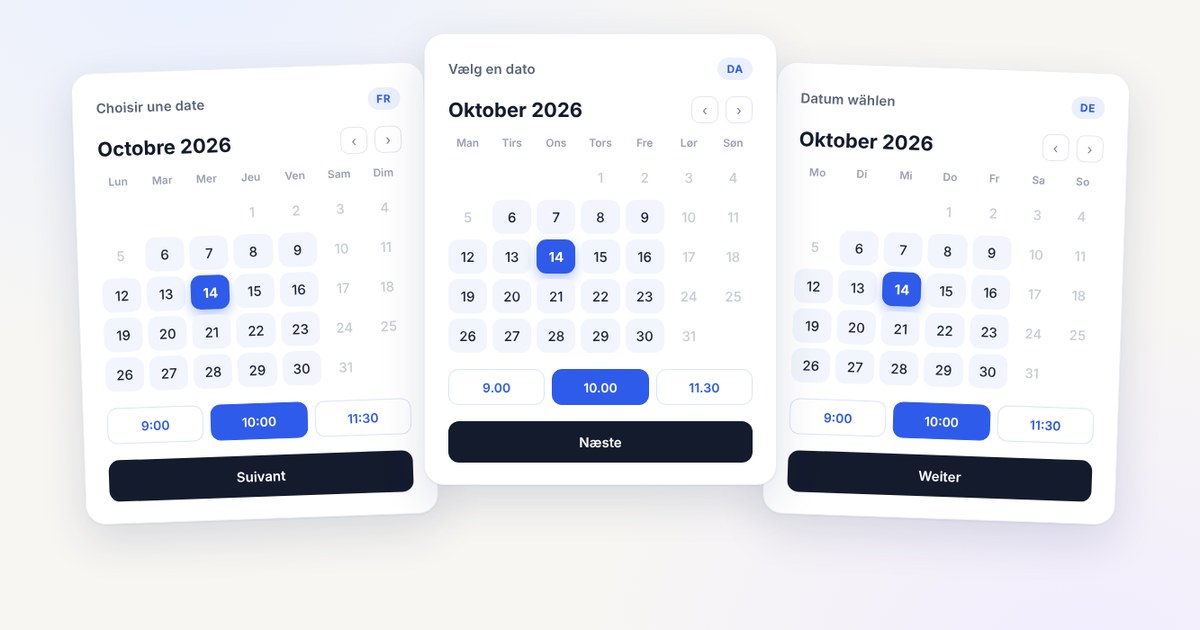
In the service editor, open Calendar design and choose Calendar Language. A service can follow the current WordPress website language, or you can select a specific language and regional format such as French, Danish, German, Spanish, Ukrainian, Japanese or one of several English variants.
The selected language controls month names, weekday names, the date summary in the booking footer and the date on the confirmation screen. If a service follows the website language, it updates automatically when the WordPress locale changes. A service with an explicit choice keeps it.
For languages written from right to left, such as Arabic and Hebrew, the calendar supports right-to-left presentation.
Booking steps and buttons
Under Text & Labels, you can edit the six customer-facing labels that guide the client through a booking: Select date, Select time, Duration, Enter your details, Back and Next.
The same wording appears in the popup and inline booking views. A connected Gutenberg Booking Profile block also inherits the service’s labels. If you leave a label empty, Creavi falls back to the plugin’s translated WordPress string.
Form fields and consent
You can rename the default Name, Email and Phone fields for each service and decide whether each one is required. Custom fields use the label you write, so a “Tell us about your case” field can appear as “Décrivez votre situation” on a French service.
The consent checkbox has editable text and an optional privacy-policy URL. Point it to the privacy policy written in the same language as the service. Read more in our guide to WordPress booking forms with custom fields.
Emails, reminders and the thank-you message
The service title, description, thank-you message and every email subject and body are editable. Customer and administrator messages are configured separately, so your client can receive a confirmation in Spanish while your team receives its notification in English.
Dynamic tags such as {name}, {date}, {time} and {service} insert the booking details into your translated text. Reminders follow the same pattern, with their own timing and wording for clients and administrators.
Remaining plugin text
Creavi is translation-ready. English is the default, and French and Danish interface translations are included. Other languages can be added through translate.wordpress.org or a translation tool such as Loco Translate. This covers the remaining plugin-generated messages outside the settings described above.
How to set up booking in a second language
The steps below create a booking calendar for one additional language. Repeat them for each language you serve.
- Create a service for the language. Give it a clear name in that language, for example “Consultation initiale (30 min)”. Set its availability, duration and meeting method.
- Choose the calendar language. In Calendar design, select the language and regional format your clients expect.
- Translate the booking steps. Open Text & Labels and write the six step and button labels in the service language.
- Adapt the booking form. Rename Name, Email and Phone, translate any custom fields and write the consent text. Link to the matching privacy policy.
- Write the client emails. Translate the confirmation, reminder and thank-you message. Keep the administrator notification in the language your team reads.
- Set how times appear. Choose localized timezone mode for online meetings with international clients, or locked mode for in-person appointments. Choose 12-hour or 24-hour display to match local habits.
- Publish on the matching page. Add the service to the page written in that language with the Creavi Gutenberg blocks, the
[creavibc_booking_inline id="123"]shortcode or the popup button shortcode. Elementor and other page builders work through their shortcode widget. - Preview and test. Use the live preview in the service editor, then make one real test booking to check the confirmation email and calendar event.
For a broader setup walkthrough, see how to add appointment booking to WordPress.
Using Creavi on a site with a translation plugin
Many multilingual WordPress sites create a separate page for each language with a translation plugin or a manual page structure. Because each Creavi service carries its own language settings, the method is simple: add the French service to the French page, the English service to the English page and so on.
This keeps every booking journey complete without depending on automatic translation of booking content. After publishing, test each language page while logged out. Translation and caching tools can affect how page content is processed, so a quick check confirms that every visitor sees the right calendar.
Practical examples
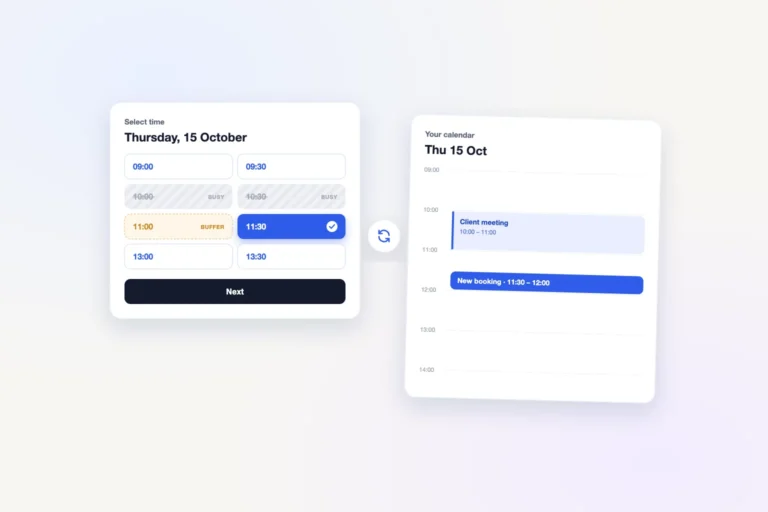
A consultancy serving two markets. A Copenhagen firm runs a Danish discovery call and an English discovery call. When both services connect to the same Google or Outlook calendar with busy-time blocking enabled, a booking in one language blocks that time in the other. The team receives every notification in Danish. Learn more about the Google Calendar connection and the Outlook Calendar connection.
Legal or financial advice for international clients. An adviser on the French Riviera offers in-person consultations in French and video consultations in English. The in-person service uses a locked timezone. The video service uses localized time and Creavi’s built-in secure video meetings, so clients abroad see times in their own timezone.
Coaching or therapy practices with diverse clients. A practice welcoming Arabic-speaking clients can publish an Arabic service with a right-to-left calendar, translated labels and Arabic confirmation emails. See more workflows for coaches, therapists and consultants.
Agencies building sites in several markets. An agency can configure language per service for each client project, then publish the calendar inline or in a popup with Gutenberg, Elementor or another page builder. Our Elementor booking guide shows both placements.
How this differs from add-on based multilingual booking
Booking plugins approach languages differently. In some products, multilingual booking is part of a paid tier. For example, BookingPress lists its Multi-Language add-on as part of its premium plans. Other plugins rely mainly on a translation plugin to replace their text.
We built language into each Creavi service because organizations rarely serve every client in the same way. A per-service setting lets you match the calendar, wording and emails to each audience, and it is part of the free plugin. Creavi also does not impose limits on the number of services or bookings, so adding a language does not move you into another plan.
What users say about working with Creavi
The current WordPress.org reviews are not about languages specifically, but they describe the setup experience. One reviewer who moved from Calendly described Creavi as thoughtfully designed and easy to configure, and noted that the developers keep improving it. Another reviewer valued the inline and popup options and reported that a bug fix arrived within 24 hours.
Tell us which language workflow you need
We localize Creavi based on how people actually use it. If your organization needs a different language workflow, such as a specific regional format or a new translated message, tell the Creavi team how it should work for you. If you are planning a multilingual setup and want a second pair of eyes, you can book a call with the Creavi team.
Frequently asked questions
Can one WordPress site offer booking in several languages?
Yes. In Creavi, create one service for each language and set its calendar language, step labels, form fields and emails. Then publish each service on the page written in that language.
Which languages does the Creavi booking calendar support?
Each service can follow the WordPress website language or use one of 67 explicit language and regional choices, including variants of English, French, German, Spanish, Arabic and Chinese, as well as Danish, Ukrainian, Japanese and many others.
Does Creavi support right-to-left languages?
Yes. The booking calendar supports right-to-left presentation for relevant locales such as Arabic and Hebrew.
Do I need WPML or Polylang to use Creavi in several languages?
No. The language settings for the booking journey live in each Creavi service. If your site already uses a translation plugin with separate pages per language, place the matching service on each translated page and test it while logged out.
Can customer emails and admin notifications use different languages?
Yes. Customer and administrator messages have separate subjects and bodies, so each can be written in a different language.
Is the Creavi admin area translated?
English is the default, and French and Danish interface translations are included. Other languages can be added through translate.wordpress.org or a tool such as Loco Translate.
Is multilingual booking free in Creavi?
Yes. The calendar language selector, editable labels, form labels and email templates are all part of the free plugin on WordPress.org.
Start offering booking in your clients’ language
Install Creavi, create a service for each language you serve and publish it on the matching page. You can explore the booking flow first in the live demo.