


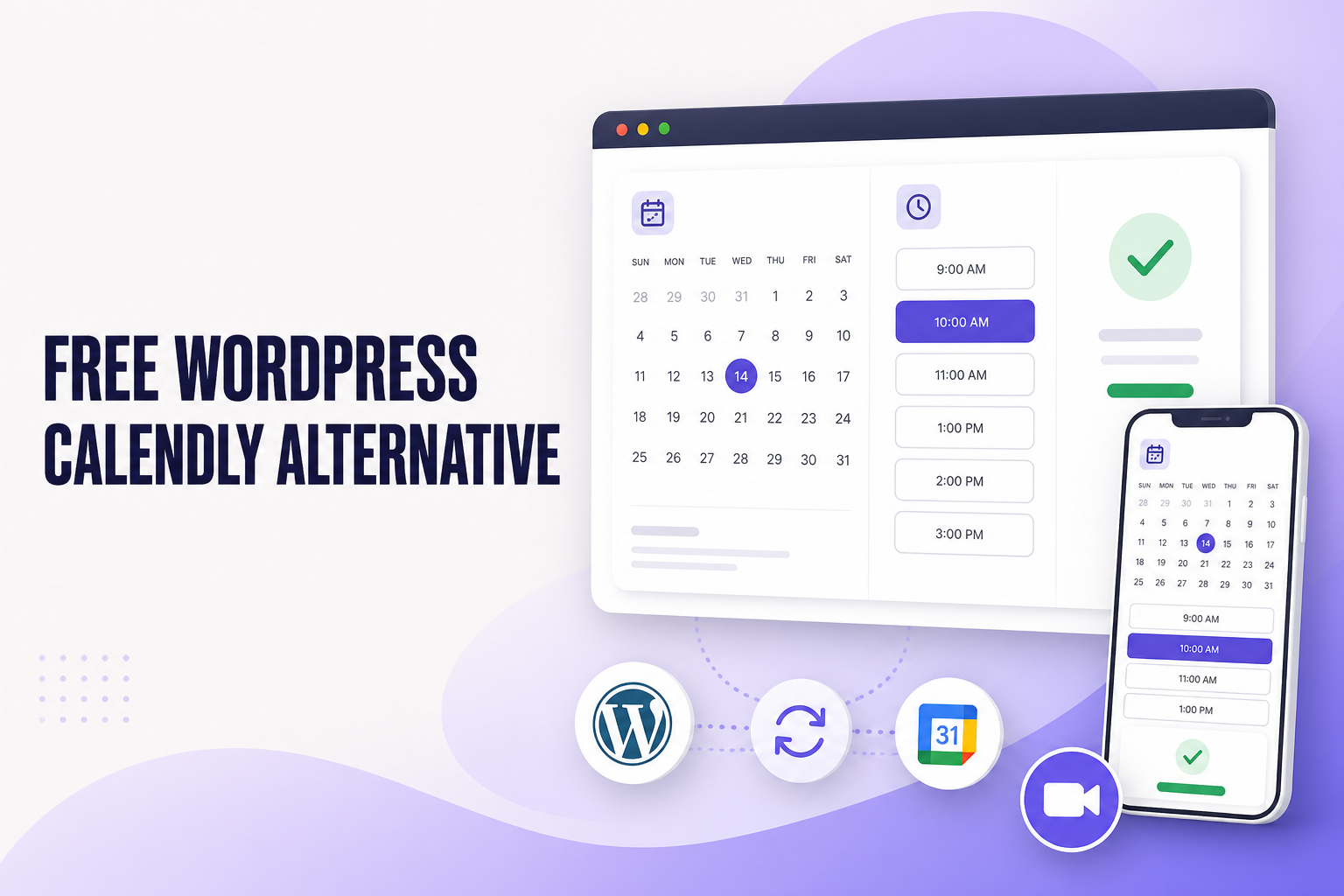
If you want a free Calendly alternative for WordPress, Creavi lets customers book appointments directly on your website without a monthly plugin fee. In fact, it combines a clean booking calendar with free Google Calendar and Outlook connections, automated reminders, iCalendar files, flexible popup or inline embedding, and built-in secure video conferencing for online appointments.
Calendly is a well-known scheduling service. However, a separate hosted booking page is not the right fit for every WordPress website. Instead, many businesses prefer to keep the booking journey inside their own pages, match it to their branding, and manage services from the WordPress dashboard they already use.
Want to replace Calendly today? Here’s how to add a free booking calendar to WordPress from start to finish.
Quick answer: Creavi is a strong free WordPress alternative to Calendly for businesses and professionals who want fast setup, a beautiful customizable interface, calendar availability checks, reminders, and online appointments with built-in secure video conferencing. For example, install the plugin, create a service, set availability, and publish a booking button or inline calendar in minutes.
Why choose a WordPress alternative to Calendly?
Ultimately, the best scheduling system is the one that fits naturally into the way your customers already find and trust your business. For that reason, if your services, landing pages, articles, and contact information are on WordPress, it can make sense to let visitors book there too.
In practice, a WordPress-native appointment plugin can help you:
- Keep visitors on your own website from service discovery to confirmation.
- Place a booking button or calendar beside the content that explains each service.
- Match the booking interface to your brand colors and page design.
- Create different services with their own availability, calendar connection, duration, meeting method, and email instructions.
- Manage appointment records and booking settings from WordPress.
- Avoid adding another monthly plugin subscription to your business tools.
For example, this is especially useful for consultants, coaches, therapists, tutors, clinics, recruiters, agencies, legal and financial professionals, beauty and wellness businesses, SaaS demo teams, repair services, and other appointment-based organizations.
A WordPress user who replaced Calendly with Creavi
In a five-star review published on WordPress.org on 14 September 2026, ZLC described moving appointment scheduling onto a WordPress website instead of sending visitors to a third-party service.
“It’s thoughtfully designed, easy to configure, integrates beautifully into my site.”
ZLC, WordPress.org review
The reviewer also said Creavi inspired additional ideas beyond the original scheduling need, while noting that more customization and automation would make the plugin stronger. This balanced feedback confirms a real migration experience and identifies areas where continued development can add value.
Read the original five-star review on WordPress.org.
One public review does not predict every user’s result. It does provide direct evidence that a WordPress user replaced an external scheduling workflow with Creavi and found the setup clear and well integrated.
Calendly vs Creavi: quick comparison
At a glance, Calendly and Creavi both reduce the back-and-forth of arranging a meeting, but they use different approaches. Calendly is a hosted scheduling platform. By contrast, Creavi is a WordPress appointment-booking plugin that adds the booking experience directly to your website.
| Feature | Calendly | Creavi for WordPress |
|---|---|---|
| Where it runs | Hosted scheduling service with shareable pages and website embeds | Installed and managed on your WordPress website |
| Free approach | Free plan for personal use with one event type and one connected calendar | Free WordPress plugin with no monthly plugin fee or paid feature tier |
| Calendar connections | One calendar on the Free plan; multiple calendars on paid plans | Google Calendar and Outlook connections included free, configured per service |
| Availability protection | Uses connected-calendar availability | Reads busy Google or Outlook periods before offering appointment times |
| Reminder emails | Automated meeting reminders are listed on paid plans | Customizable customer and administrator reminders included free |
| Online appointments | Supports connected video-conferencing tools | Built-in secure video conferencing for online appointments, plus custom meeting links |
| WordPress embedding | Embed a Calendly scheduling page | Popup button, inline calendar, shortcodes, and Gutenberg booking blocks |
| Appointment formats | Online and in-person meeting locations | Built-in video conference, custom online link, telephone call, or in-person appointment |
Calendly offers a Free plan and paid plans with different limits for event types and connected calendars. Check its pricing page for current limits and prices before deciding.
What makes Creavi a strong free Calendly alternative?
1. Install it and start booking from WordPress
In practice, Creavi is designed to make the first setup direct. After activation, create a service, choose the appointment duration, define availability, and add the booking experience to a page. As a result, you do not need to build a separate scheduling website or send customers to another domain.
For that reason, each service receives shortcodes for two presentation methods:
- Popup booking: add a Book Now button that opens the calendar in a focused overlay.
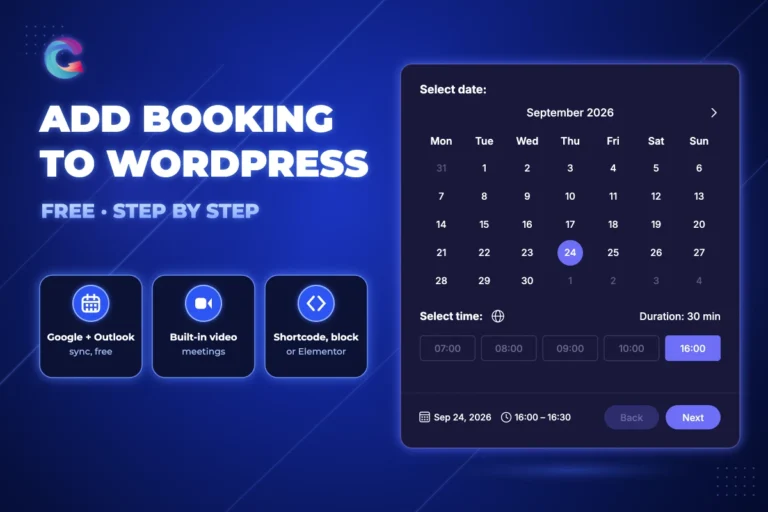
- Inline booking: place the complete Date → Time → Details interface directly inside the page.
In addition, Gutenberg users can use ready-made Service Hero and Booking Profile blocks. Meanwhile, Elementor and other page builders can use the same shortcodes. See the guide to using a free WordPress booking plugin with Elementor for practical popup and inline examples.
2. Free Google Calendar and Outlook connections
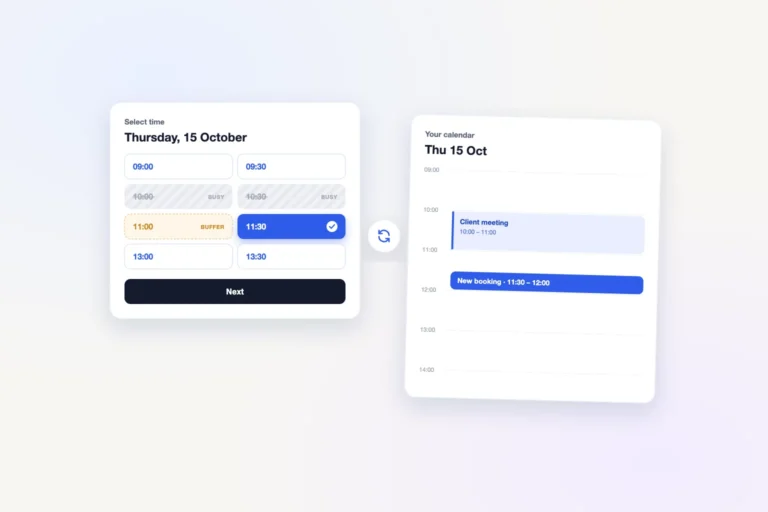
Most importantly, a booking page is only helpful when it reflects real availability. For instance, Creavi can create events in a connected Google Calendar or Outlook Calendar and check existing busy periods before displaying available times. Consequently, this helps prevent customers from selecting a slot that is already occupied. It sounds like a small detail, but it is usually the difference between a useful booking calendar and another calendar you have to babysit.
Meanwhile, calendar connections are configured per service. As a result, that makes it easy to create services for different appointment types or team members and connect each workflow to the appropriate calendar and contact details.
For step-by-step help, follow the dedicated setup guides for Google Calendar booking integration and Outlook and Microsoft 365 appointment booking.
3. Built-in secure video conferencing for online appointments
For online work, Creavi includes built-in secure video conferencing for online appointments. Once this meeting type is selected, the plugin generates dedicated joining information for the customer and host. Consequently, the correct link can be included in confirmations, reminders, calendar events, and iCalendar attachments.
However, you can also use your own online meeting URL, offer a telephone appointment, or provide an in-person location. In other words, one plugin can support remote, physical, telephone, and hybrid appointment workflows.
4. Automated confirmations and reminders
Similarly, Creavi can send customizable confirmation and reminder emails to both the customer and administrator. For instance, dynamic placeholders can add the customer name, service, date, time, location, calendar link, and meeting information automatically.
In addition, customer and administrator reminders can use their own schedules and templates. As a result, this keeps everyone informed without manually writing an email before every appointment.
5. Practical scheduling controls
Of course, different services need different booking rules. Creavi provides practical controls that are easy to understand:
- Static dates or rolling availability windows
- Different time slots for each weekday
- Minimum notice before an appointment can start
- Optional 5–60 minute buffers between appointments
- Excluded dates for holidays or days off
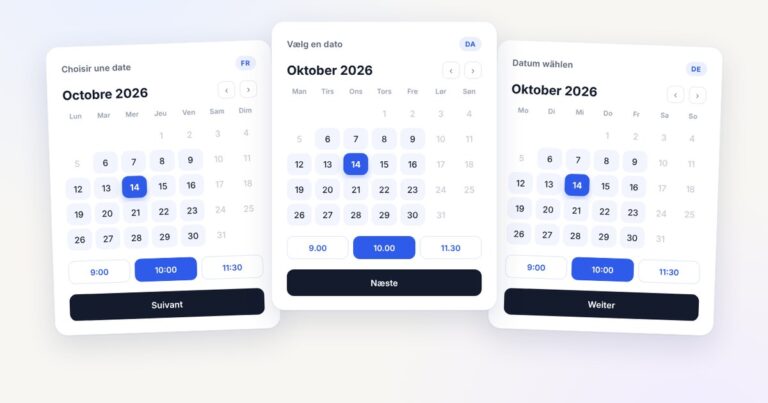
- Localized visitor timezones or a fixed business timezone
- Custom text and textarea fields
- Optional GDPR consent field
As a result, these controls help the public calendar reflect the way the business actually works while keeping the administration interface clean.
6. A clean, customizable booking experience
On the front end, the booking journey follows a simple Date → Time → Details flow that works on desktop and mobile screens. For example, adjust the service color, choose a light or black interface, add custom form questions, and write a personalized thank-you message.
Because each popup or inline calendar can sit beside the full service description, visitors receive the information they need before choosing a time. As a result, this creates a more connected experience than sending every visitor to the same external scheduling profile.
How to replace a Calendly link with Creavi
To get started, you can create a WordPress booking journey in seven steps:
- Install Creavi. First, in WordPress, go to Plugins → Add New, search for Creavi Appointment Booking Calendar, install it, and activate it.
- Create a service. Next, add the title, description, duration, host details, and service image.
- Set availability. Then, choose available weekdays and times, a rolling booking window, excluded dates, minimum notice, and an optional buffer.
- Connect a calendar. Afterwards, connect Google Calendar or Outlook so Creavi can create events and protect busy times.
- Choose the appointment method. Next, use built-in secure video conferencing, a custom online link, a telephone call, or an in-person location.
- Customize the booking journey. Then, adjust colors, form fields, confirmations, reminders, and the thank-you message.
- Publish it. Finally, add the popup-button or inline-calendar shortcode to a WordPress page, or use a Gutenberg booking block.
Afterwards, place the booking experience on service pages, landing pages, team-member profiles, contact pages, or relevant articles. In addition, you can show multiple service buttons on one page so customers choose the appointment that matches their needs.
Who can use Creavi instead of Calendly?
In short, Creavi is a flexible, all-purpose appointment-booking plugin for businesses and professionals across industries. Common examples include:
- Consultations and discovery calls
- Coaching and mentoring sessions
- Therapy and wellness appointments
- Tutoring, lessons, and educational meetings
- Legal, financial, and accounting consultations
- Recruitment interviews
- Sales calls and software demonstrations
- Clinic, beauty, and personal-care appointments
- Photography and creative-service consultations
- Repair, maintenance, and professional-service visits
Therefore, the same clean booking flow can be configured for an online appointment, telephone call, in-person service, or custom meeting URL.
Frequently asked questions
What is the best free Calendly alternative for WordPress?
For many WordPress users, Creavi is a strong free Calendly alternative for WordPress when you want the booking journey on your own website. In addition, it includes Google Calendar, Outlook, iCalendar, reminders, popup and inline embedding, customizable booking forms, and built-in secure video conferencing for online appointments.
Has a WordPress user replaced Calendly with Creavi?
Yes. In a five-star WordPress.org review, ZLC said they moved appointment scheduling onto their WordPress site and described Creavi as easy to configure and well integrated. Read the original review. This is one user’s experience, so test Creavi with your own booking workflow before switching.
Is Creavi really free?
In short, it is. Creavi is free to install and use, with no monthly plugin fee or paid feature tier. Moreover, the Google and Outlook connections, iCalendar files, reminders, booking controls, and built-in secure video conferencing described in this guide are included free.
Can Creavi prevent double bookings?
As a result, Creavi reads busy periods from a connected Google Calendar or Outlook Calendar and removes conflicting times from the public booking calendar. Additionally, new WordPress bookings can create events in the connected calendar.
Does Creavi support online video appointments?
For online work, Creavi includes built-in secure video conferencing for online appointments, with customer and host joining information. Alternatively, you may use a custom online meeting link.
Can I use Creavi with Elementor?
For Elementor, paste the Creavi popup or inline shortcode into an Elementor Shortcode widget. Therefore, this works with Elementor Free, so Elementor Pro is not required.
Can I create different booking calendars for different services?
In practice, create the services your business needs and configure the appropriate availability, calendar connection, meeting method, contact details, and emails for each one. For that reason, you can place multiple booking buttons on the same page or give each service its own landing page.
Can customers add the appointment to their calendar?
For convenience, Creavi supports Google Calendar links and downloadable iCalendar (.ics) files that work with compatible calendar applications.
Try a free WordPress alternative to Calendly
Finally, if you want a simple, beautiful booking journey that remains part of your WordPress website, Creavi provides the complete setup without a monthly plugin subscription. Create services, connect Google Calendar or Outlook, send reminders, offer built-in video conferencing for online appointments, and embed the booking experience wherever customers need it.
Install Creavi free from WordPress.org, explore the live appointment-booking experience, or read the complete guide to the free WordPress appointment booking plugin with Google, Outlook, and built-in video conferencing.
1 Comment
[…] plugin-by-plugin details, see Creavi vs Amelia, Bookly, LatePoint, Booknetic, our free Calendly alternative guide and the 6 best booking plugins of […]